 CARIS HPD Source Editor
 CARIS HPD Source Editor
Menu | Usages > Add Generalization Relation |
Create a relationship between features on two layers. A small detailed feature or a group of tiny features on a large-scale usage can be permanently linked to a single more generalized feature on a small-scale usage.
To create the relationship, you must select one or more features on a large-scale usage, then select the corresponding feature on a small-scale usage. The generalization relationship is established and is displayed in the Representations tab.
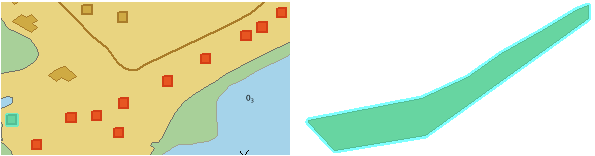
For example, if there are several small coastline buildings on a large-scale usage named Approach, they could be generalized to a single area on a small-scale usage named General.
Features cannot have a cartographic representation on a smaller scale usage and be part of a generalization relationship with another feature on that smaller scale usage. They can only have one or the other. |
Usage order is established in the CARIS HPD Admin Tools. Refer to Usages in the CARIS® HPD® User Guide for further information.
Verified changes to the large-scale features are detected automatically. You can use the Create Layer by Pending Update command on the small-scale layer to locate the related feature.
Changes to the large-scale feature would not be applied automatically to the related small-scale feature. Use the editing commands to change the small-scale feature..
The generalization can be one of the following:
• One to one: A single feature on one usage is generalized to a single feature on another.
• Many to one: Several features on a smaller-scale usage are generalized to a single feature on a larger-scale usage.
Interface
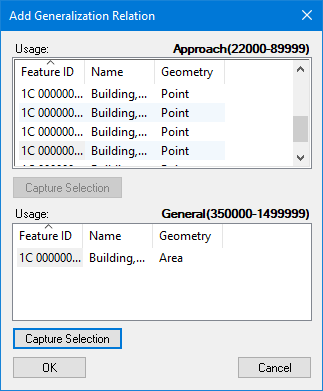
The large-scale usage is displayed at the top of the dialog box. The small-scale usage is displayed at the bottom.
You can refine the selection using the following pop-up menu:
• Remove: Remove the highlighted feature from the selection.
• Remove Others: Remove all features except the highlighted features from the selection.
• Clear Selection: Remove all features from the selection.
Procedure
1. Select the Add Generalization Relation command.
The Add Generalization Relation dialog box is displayed. This dialog box will remain active while you select features.
First select the features on the large-scale usage.
2. Make the large-scale usage the active layer.
3. Select the necessary features.
You can use any of the select commands and zoom in and out in the display.
4. Click the topmost Capture Selection button.
The selected features are added to the top usage list.
5. [Optional] Refine the selection using the pop-up menu.
Now capture the feature for the small-scale usage. If you select more than one feature, an error message is displayed when you capture the selection.
6. Make the small-scale usage the active layer.
7. Select the feature.
8. Click the lower Capture Selection button.
9. Click OK.
The generalization relation is created. It is shown in the Representations window.