 CARIS HPD Paper Chart Editor
 CARIS HPD Paper Chart Editor
This command is only available if the Raster Chart Module is enabled. |
Menu | Raster > Boolean Overlay |
Pop-up | Boolean Overlay (Layers window) |
Change the pixel content of a raster layer by overlaying it with another layer. Boolean operations determine how pixels are displayed.
The layer that is selected in Layers window is the base layer. The layer that is selected to perform the overlay is the overlay layer.
You can apply Boolean overlay to either an entire base layer or to a section of it.
Four Boolean operations can be applied. See below.
Operation | Base | Overlay | Result |
|---|---|---|---|
Subtract Pixels on the base layer not intersected by pixels on the overlay layer |
|
|
|
Union Pixels on the base layer, on the overlay layer, or on both layers. |
| ||
Exclusive or Pixels either on the base layer or on the overlay layer but not on both layers |
| ||
Intersect Pixels on the base layer intersected by pixels on the overlay layer. |
|
Related commands:
• • • | • • • |
Interface
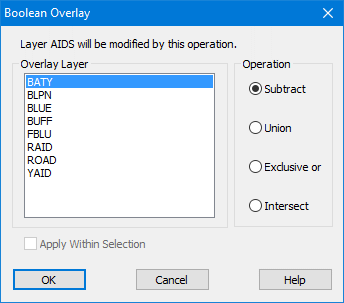
Options | Description |
|---|---|
Overlay Layer | Raster layers that are open and available as an overlay layer |
Operation | Four Boolean operations determine which pixels from the selected layers are applied: • Subtract: Pixels on the base layer not intersected by pixels on the overlay layer. • Union: Pixels on the base layer, on the overlay layer, or on both layers. • Exclusive or: Pixels either on the base layer or on the overlay layer but not on both layers. • Intersect: Pixels on the base layer intersected by pixels on the overlay layer. |
Apply within selection | Constrain the Boolean operation to a selected area. |
Procedure
1. Select a base layer in the Layers window.
2. [Optional] Use a raster selection tool to select part of the base layer.
3. Select the Boolean Overlay command.
The Boolean Overlay dialog box is displayed
All of the raster layers that are available as overlay layers are displayed in the layers list.
4. Select a layer from the Overlay Layer list.
5. [Optional] Choose the Apply Within Selection check box to constrain the boolean operation to selected areas.
6. Select an Operation.
7. Click OK.
The updated data is applied to the base layer.


