 CARIS HPD Paper Chart Editor
 CARIS HPD Paper Chart Editor
CARIS Paper Chart Composer
Menu | Create > Image > From File |
Insert a TIFF image into a panel as a cartographic feature. The acronym that is used for the image depends on the image type selected.
Image Type | Acronym | Size (bit) | Options |
|---|---|---|---|
Monochromatic | $imag2 | 1 bit | Select the foreground and background colours and any masking information. |
Palette | $imagp | 4 or 8 bit | Use a colour in the image palette to create a colour mask. |
True Colour | $imagt | 16, 24, or 32 bit | No changes can be made to the masking or colours for the image. |
Transparency is available for 1-bit monochrome, 4-bit (16 colours) and 8-bit (256 colours) TIFF images only. If you are exporting to spot separate postscript, use only 1-bit, 4-bit or 8-bit images. Images with greater depth or with anti-aliasing are ignored during the spot export process. |
Related commands
• | • |
Interface
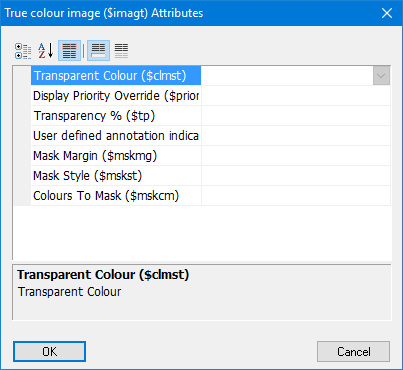
Property | Description |
|---|---|
Transparent Colour | A colour that will be made transparent. |
Display Priority Override | Override the default display priority of the feature. This determines if a feature is drawn on top of or beneath another feature. Priority value is between 0 and 30. Features with a priority of zero are drawn first, features with higher values are drawn on top. |
Transparency % | Percentage value for transparency. |
User defined annotation indicator | Indicator for manually created annotations |
Mask Margin | Size of the margin or buffer that is used to mask features. |
Mask Style | The style of masking. |
Colours to Mask | List of colours to which masking is applied. |
Procedure
1. Select the Panel data layer.
2. Select the Create Image from File command.
A file open dialog box is displayed.
3. Select a TIFF image file and click Open.
A message is displayed asking if you want the image cropped to the panel boundary.
4. To crop the image, click Yes.
The Image Attributes dialog box is displayed.
5. Change the image attributes as needed and click OK.
The image is inserted into the panel.
The priority display, override colour, masking attributes can be changed in the Attributes window.
You can move and resize the image. Note that moving or resizing a georeferenced image overrides its original positioning. You will need to re-register the image using the Register command.
Georeferencing can be assigned to the image using Registration.