 CARIS HPD Paper Chart Editor
 CARIS HPD Paper Chart Editor
CARIS Paper Chart Composer
Menu | File > Import > Panel data > [file or CARIS layer] |
Pop-up | Panel data > [file or CARIS layer] |
Populate a panel with features from an external file that fall within a panel boundary.
• For database charts, the features are imported into the database when the panel is populated.
• For standalone charts, the features are saved to a PCC file.
If the external file format is S-57 or HOB, all features within the panel boundary are imported; if the format is a CARIS file, only features on a selected layer are imported.
This command is the third step of a three-part process for creating charts and panels. See the graphic below for an overview of the chart creation process.

Related commands:
• • | • |
Interface
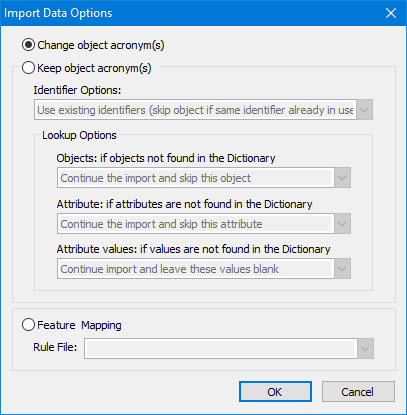
Option | Description |
|---|---|
Change object acronym(s) | Change the feature acronym of each object during import. The Select Object Acronym and Attribute dialog boxes are displayed for each feature being imported. |
Keep object acronym(s) | Retain feature acronyms during import. |
Identifier Options | Three options for assigning Feature Object IDs (FOID): • Assign new identifiers during import • Use existing identifiers (skip object if ID already in use) • Use existing identifiers (assign new IDs if same ID as in layer.) This option is available only if Keep object acronyms is selected. |
Objects: if objects not found in dictionary | Two options for handling objects not in the dictionary: • Continue import and skip this object. • Stop import. This option is available only if Keep object acronyms is selected. |
Attribute: if attributes are not found in dictionary | Two options for handling attributes not in the dictionary: • Continue import and skip this attribute. • Stop import. This option is available only if Keep object acronyms is selected. |
Attribute values: if attribute values are not found in dictionary | Two options for handling attributes values not included in the dictionary: • Continue import and leave these values blank • Stop the import. This option is available only if Keep object acronyms is selected. |
Feature Mapping | This option enables the Rule File list so that you can select a rule file to automatically convert features and attributes from one format to another during import. |
Rule File | List of available rule files. This option is available only if the Feature Mapping option is selected. |
Procedure
1. Select Boundaries in the Layers window.
2. Select the Create Panel Data from External File command.
The Import Data Options dialog box is displayed.
3. Choose from three import options:
• Change object acronym: The imported feature’s acronym and attributes are changed individually during import.
• Keep object acronym: The import feature’s acronyms and attributes are retained during import.
• Feature Mapping: Assign feature and attribute acronyms from one format to another by using object mapping. An XML mapping file is used to assign acronyms and attributes to objects.
4. Click OK.