Tool | Properties window > Style |
The Style property is used to define display portrayals for data based on user-specified classifications. A different style can be applied to each layer to easily identify data according to its classification.
The Style property can be used with data in several vector formats, such as Shapefiles, GML, GeoPackage, AutoCAD and CARIS DES. It also works with database object layers. It is not compatible with HOB and S-57 ENC data. |
A style consists of rule groups that filter the data in the Display window based on attribute values. Each rule group is defined in either the Create Layer by Classification command or the Create Layer by Filter command and then applied to the data.
A set of rules is automatically generated from the specified criteria and the values in the source data. Multiple rules can be defined and ordered for a single style definition.
Related commands:
• | • |
Interface
Option | Description |
|---|---|
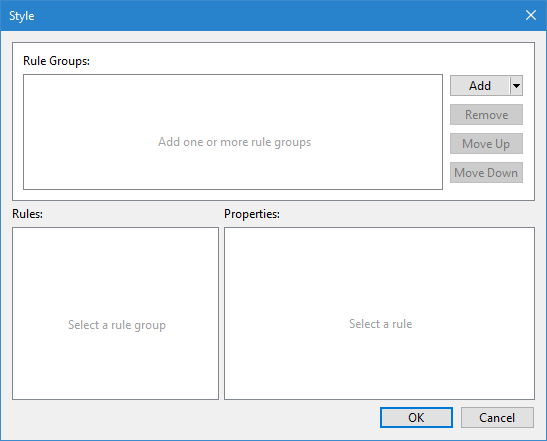
Rule Groups | A list of rule groups that have been generated for each set of classification or filter rules. Each time a new rule is added, a new rule group is added to the list. The rules are applied to the data in the order that they appear in the list. If a conflict occurs between the rules, the top-most rule will supersede the other rules. 4. |
Rules | The rules that have been automatically generated for the currently selected rule group. This list can differ depending on the input data even if the same rule has been applied. |
Properties | The portrayal settings for the rule currently selected in the Rules list. If the automatically generated rule is not sufficient, the Filter property can be used to adjust it. |
Command | Description |
|---|---|
Add | Add a new rule group to the style. A rule can be created from a classification that is specific to the format of the data in the layer for which the style is being created; or from a filter expression that is not limited to the data in the source layer. 1. Click Add. A list of rule types is displayed. 2. Select the type of rule to define. 3. Define the rule using the Create Layer by Classification command or the Filter command. |
Remove | Remove the currently selected rule group from the style. 1. Select a rule group in the list. 2. Click Remove. |
Move up/Move down | Move the currently selected rule group to a different location in the list. 1. Select a rule group in the list. 2. Click Move Up or Move Down. |
Procedure
1. Select a layer in the Layers window.
2. Select the Style property in the Properties window.
3. Click the browse button (...).
The Style dialog box is displayed.
4. Click Add and select the desired rule creation tool.
5. Define the rule criteria and click OK.
6. Define any necessary portrayal settings for the resulting rules.
7. If necessary, define additional rule groups.
8. Click OK.
The rules defined for the style are applied to the display of the data.