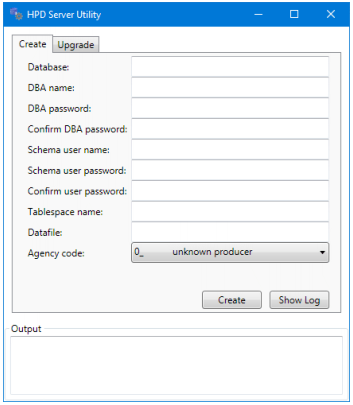
The HPD Server Utility creates and updates schemas.
1. From the Start menu, select CARIS > HPD Server Utility > <version>.
The HPD Server Utility is displayed.
2. Select the Create tab.
3. Enter the parameters in the following table.
Parameter | Description |
Database | Database where the new schema is stored. |
DBA name | Oracle® DBA user name. The name is typically system but may vary depending on your setup. |
DBA password | DBA password to access the database. |
Confirm DBA password | Re-enter the DBA password to confirm it. |
Schema user name | Name of the new HPD schema. This is also the user account name for the schema owner. By default, the schema owner administers and upgrades the schema. The name is case-insensitive. You cannot create two schema owners that have the same name, regardless of case. When you log in to HPD, Oracle does a case-insensitive match on the user name. |
Schema user password | Password for the schema owner to access the database. The password is case-sensitive. Any user can change the password of any other user if they know the existing password. To change the password, you must first re-enter the existing password. |
Confirm user password | Re-enter the Schema user password to confirm it. |
Tablespace name | Name of the Oracle tablespace that acts as a container for schema-related tables and data files. |
Datafile | Location of the Oracle data file. When creating a database from a remote computer, the path must include the drive and folder names on the Oracle Server. |
Agency code | Hydrographic agency code. Select a code from the drop-down list. |
4. Click Create.
Information is reported in the Output section of the Server Utility. A log file is also created.
5. [Optional] Click Show Log to view a log file of the schema creation process.