 CARIS HPD Paper Chart Editor
 CARIS HPD Paper Chart Editor
CARIS HPD Product Editor
CARIS HPD Source Editor
CARIS S-57 Composer
CARIS Paper Chart Composer
Menu | File > Open > Service > [service name] |
Pop-up | Add > [service name] (Projects menu) |
Open data available via web services.
Supported services are:
Service | Description |
|---|---|
Web Map Tile Service | (WMTS) A tile-based portrayal service for geospatial data. It returns raster images. Tiles are retrieved at a resolution based on the current view scale in CARIS, similar to CSAR data. Tiles will be retrieved in their entirety, regardless of the current view extents. |
Tile Map Service | (TMS) A tile-based portrayal service for geospatial data. It returns raster images. TMS is similar to a WMTS, but with different standard protocols. The default tile size is 256 x 256 pixels. A well-known provider of a TMS is OpenStreetMap but users should be aware of their Tile Usage Policy before using this service. Information can be found at: http://wiki.openstreetmap.org/wiki/Tile_usage_policy |
Web Coverage Service | (WCS) Open coverages from a server. Coverages are geospatial representations of map data and are retrieved as raster. These may be images or may contain depth information. |
Enhanced Compression Wavelet | (ECW) Remotely open ECW and JPG2000 rasters available from a server. |
If you use a proxy server to access your network or browser, you may need to define connection settings. See Options and contact your system administrator for assistance.
Some services provide different sources in different versions, but not all versions are supported in CARIS. CARIS currently supports the following service versions:
• WMTS 1.0.0
• WCS 1.0.0, 1.1.0, 1.1.1
Contact CARIS Customer Service if you have issues with the version used by the server that you are accessing.
Related commands:
• | • |
Interface
Option | Description |
|---|---|
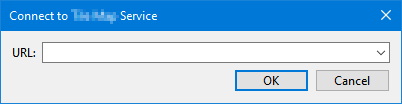
URL | The address of the service to which you want to connect. Each time an address is entered and run, it will be saved in the list for future use. Each service can remember up to 10 addresses. To remove a saved address, right-click the address in the list and choose Delete. Type a valid address in the URL field or select a previously used address from the list. |
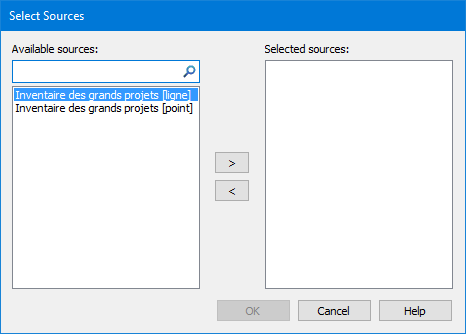
For the WMTS and WCS service types, the Select Sources dialog box is displayed if more than one data source is available.
Option | Description |
|---|---|
Available Sources | A list of all available sources. To search for a source, type in the search box and click the search tool. To select a source, highlight it and click >. The source is moved to the Selected sources list. |
Selected Sources | A list of all selected sources. Only sources in this list are opened. To deselect a source, highlight it and click <. The source is moved to the Available sources list. |
If only one source is available, this step is skipped.
About sources
Each source from a service can have unique data extents:
• If data was open before connecting to the service, the service will display only data within the extents of the current view.
• If no data was open, the selected source will be displayed using the full extents available for that source. For a TMS service, this means the full world map.
All data provided for a service can be accessed by changing the view using the Zoom, Pan and Overview commands. The data is updated dynamically any time the view is changed or refreshed.
For the other service types, data will be returned for the view extents specific to the URL entered.
If you experience problems displaying data from a service, you may need to select the correct coordinate reference system for the service layer. See Select Coordinate Reference System for more information. |
Each source is opened as a raster image. The format of the image is the first available format that is supported in CARIS.
Certain services attempt to use specific formats. For example, WCS will attempt to retrieve a GeoTIFF if GeoTIFFs are available from the server. If this is not available, it will look for PNG, then others.
If you chose to open multiple sources from a service at once, the images are automatically grouped in the Layers window with the group layer named according to the service being used.
WMTS and WCS data will be opened in the first coordinate reference system that is supported in CARIS. TMS is always opened in EPSG:3857 (Google Mercator).
Procedure
1. Select the command for the desired service.
The dialog box for the selected service is displayed.
2. Type a valid address or select from the list.
3. Click OK.
If there are multiple sources, the Select Sources dialog box is displayed.
4. Select one or more sources.
5. Click OK.