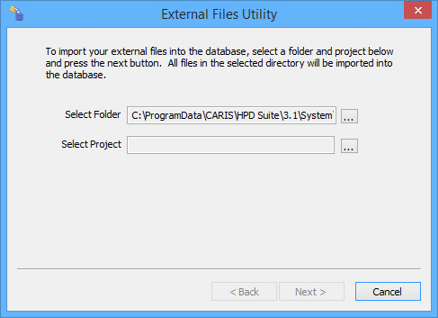
Once the LOAD_ATTACHED_FILES procedure has been set to “true”, you can use the External Files Utility to load external files to HPD.
1. From the Windows Start menu, select CARIS HPD <version> > External Files Utility.
The database dialog box is displayed.
2. Enter the database login information and click OK.
The External Files Utility dialog box is displayed.
Option | Description |
|---|---|
Select Folder | The folder where the external files are located. The default folder is referenced by the If your external files are not in the default folder, select the correct folder here. 1. Click browse (...) and navigate to the folder. |
Select Project | Associate a project with the external files. 1. Click browse (...) The Select Project dialog box is displayed. 2. Select the project to use and click OK. |
3. Select the external files folder
4. Select the project.
5. Click Next.
The export process begins. A progress bar is displayed along the bottom of the dialog box. This shows the files being imported into the database.
When the process is complete, the External Files Utility - Summary dialog box is displayed.
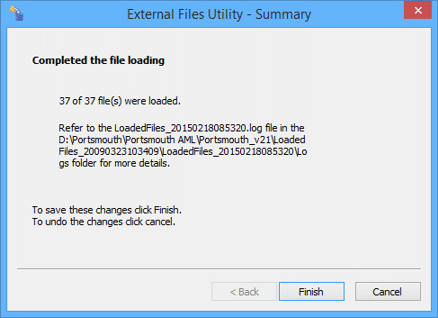
This lists the files that were loaded into the database and the name of the log file.
6. Click Finish or Cancel.
Cancel will roll back the process so that the files are not loaded.
The following files and folders are created:
• A log file named LoadedFiles_<load_date><load_time>.log. This file includes a record of the files that have been loaded and any errors encountered during the load process.
• A folder named ...\LoadedFiles_<load_date><load_time>\Logs. This folder is created in the folder with the external files. The log file and the external files that were loaded to the database are moved to this folder.
The files can then be directly associated to an attribute using the Manage External Files dialog box that is activated from the Attributes window in the HPD editors.