Each feature includes cartographic attributes that can set masking.
These masking attributes override dynamic masking. Masking attributes can be a means to adjust masking on individual features. |
The attributes are described in the following table.
Attribute | Name | Description |
|---|---|---|
$fmask | feature masking flag | This attribute sets the entire feature to masked. When the feature is masked, it can still be selected but the feature is not normally visible. There are four values: • UNDEFINED • UNKNOWN • 0 – Show • 1 – Mask |
$mskmg | mask margin | The mask margin sets the area to be masked around a selected feature. The distance is determined in millimetres. |
$mskst | mask style | The mask style determines how the masking is applied to features. There are three masking styles: • Fill • Outline • Box |
$mskcm | colours to mask | The colours to mask attribute sets the colours to be masked within the masked margin of the selected feature. The colours are selected from a colour map that is displayed in the attribute. |
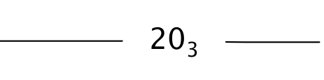
In the following example, a line is overlapping a sounding. Masking has not been applied to either feature.
If the $fmask attribute in the sounding is set to a 1 – mask, the entire sounding is masked.
If the $mskmg, $mskst and $mskcm attributes are set in the sounding, then feature segments within the masking margin area are masked and the sounding is visible. In this example, the masking attributes for the sounding are set to:
• $mskmg (mask margin): 0.2 mm
• $mskst (mask style): box
• $mskcm (colours to mask): black.
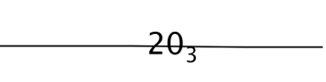
When the display is refreshed, masking is applied to the area within the masking margin, as shown.