If a schema contains views that were created through P_HPDVIEW, error messages will be displayed during the upgrade. This is because some views may now be invalid due to changes to the HPD data model. This condition can be resolved, with no loss of data, by dropping these views and then recreating them after the upgrade. For information about P_HPDVIEW functions, see P_HPDVIEW.
1. In the Windows Start menu, select CARIS HPD (version) > HPD Server Utility.
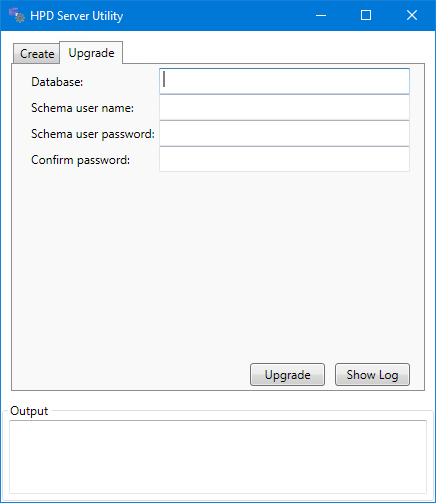
The HPD Server Utility is displayed.
2. Select the Upgrade tab.
Upgrade Process
1. Complete the following fields:
Parameter | Description |
|---|---|
Database | Database where the schema is located. |
Schema user name | Name of the HPD schema to be upgraded. This is also the user account name for the schema owner. By default, the schema owner administers and upgrades the schema. The name is case-insensitive. You cannot create two schema owners that have the same name, regardless of case. When you log in to HPD, Oracle does a case-insensitive match on the user name. |
Schema user password | Password for the schema owner to access the database. The password is case-sensitive. |
Confirm password | Re-enter the Schema user name password to confirm it. |
2. Click Upgrade.
The HPD schema is upgraded. The process is displayed in the Output area.
3. [Optional] Click Show Log to view a log file of the schema upgrade process.