 CARIS HPD Paper Chart Editor
 CARIS HPD Paper Chart Editor
Menu | Tools > Panel Overlap Summary |
Compare chart panels that were created from the same source usage and list differences between these panels. Panels can be in the same chart or in different charts.
Differences are contained in Panel Overlap Summary layers.
To repeat the command, previous Panel Overlap Summary layers must be closed.
Panel Overlap Summary locates features between panels – it does not compare panels to the source usage.
Related commands:
• |
Interface
Option | Description |
|---|---|
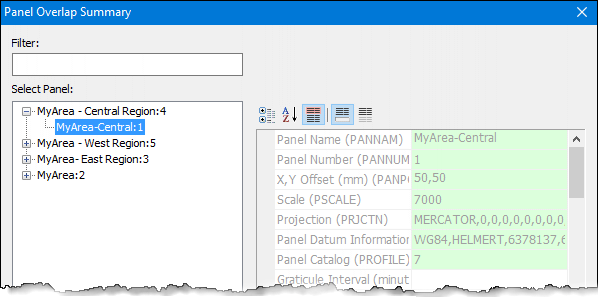
Filter | Select a specific chart. 1. Type a chart name. |
Select Panel | Displays a list of charts with panels that overlap the active panel. 1. Click the + icon against a chart name to expand a list of panels. 2. Select a panel from the list. |
Attributes | Displays the attributes of the selected panel. Read-only. |
Procedure
1. Select a Panel data layer.
2. Select the Panel Overlap Summary command.
The Panel Overlap Summary dialog box is displayed.
3. [Optional] Type a chart name in the Filter field to select a specific chart.
4. Select a chart in the Select Panel tree.
5. Select a panel.
This panel will be compared with the active panel in the open chart.
6. Click OK.
A Panel Overlap Summary layer is added to the Layers window.
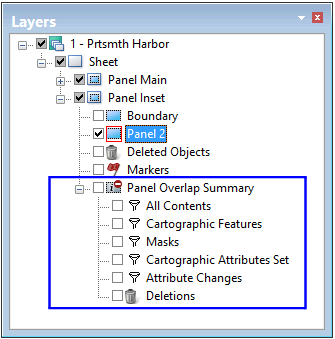
This layer contains the following sub-layers:
Layer | Description |
|---|---|
All Contents | The contents of the panel chosen for comparison to the active panel data layer. |
Cartographic Features | Cartographic features in the panel overlap area. |
Masks | Features with one or more masked edges. |
Cartographic Attributes Set | All features for which a cartographic attribute was set. The filter file is |
Attribute Changes | Features for which an attribute change was detected in one panel but not in the other. To view details right-click and select Report Differences from the pop-up menu. |
Deletions | Deleted features that are still active in other panels. |
7. Select a layer.
8. In the Display window, select one or more overlap layer features.
The related features are listed in the Selection window.