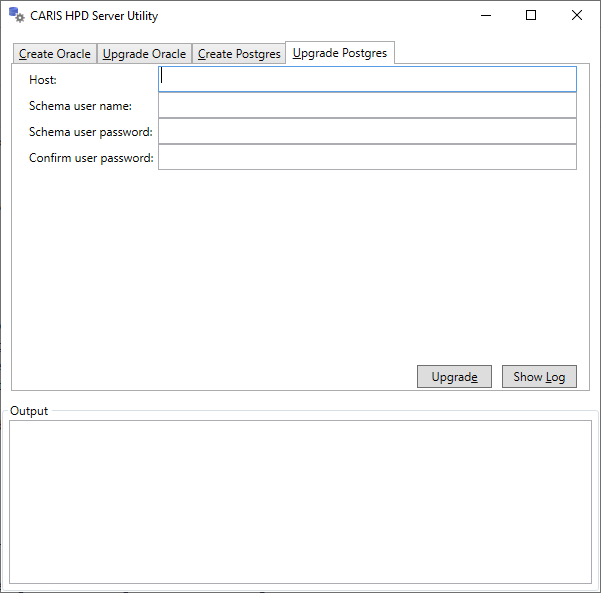
1. In the Windows Start menu, select CARIS HPD (version) > HPD Server Utility.
The HPD Server Utility is displayed.
The Oracle tabs are shown only if you have an Oracle client installed. |
2. Select the Upgrade Postgres tab.
Upgrade Process
1. Complete the following fields:
Parameter | Description |
|---|---|
Host | Location of the database where the schema is stored: • Database is on the same computer: Enter localhost. • Database is on another compute: Enter the computer name. |
Schema user name | Name of the HPD schema to be upgraded. The name is case-insensitive. You cannot create two schema owners that have the same name, regardless of case. When you log in to HPD, Postgres does a case-insensitive match on the user name. Note: When logging in to HPD or PSQL, the case of the user name and password must match the case used in the Server Utility. |
Schema user password | Password for the schema owner to access the database. The password is case-sensitive. |
Confirm user password | Re-enter the Schema user password to confirm it. |
2. Click Upgrade.
The HPD schema is upgraded. The process is displayed in the Output area.
3. [Optional] Click Show Log to view a log file of the schema upgrade process.