Menu | Create > Layer By > Feature Acronym |
Tool |
|
Menu | Create > Layer By > Feature Acronym |
Tool |
|
Create a layer that contains only features with specified acronyms. For example, filtering for buoy acronyms lets you locate all buoys on a layer.
You can further filter the new layer using any of these related commands:
• Create Layer by Attribute Value
• Create Layer by Feature Object ID
• Create Layer by Feature Type
• Create Layer by Unique Feature Acronyms
Procedure
1. Select a layer.
2. Select the Create Layer by Feature Acronym command.
The Create by Feature Acronym dialog box is displayed.
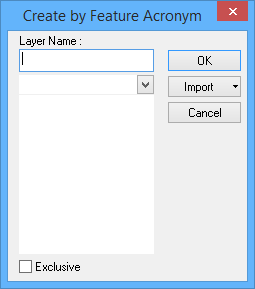
Option | Description |
Layer Name | A name for the layer. Type in the box. |
Select the acronym | Select one or more acronyms using one of the following methods: • Type in the box. If any acronyms start with the letters you type, they will be displayed. • Click the down arrow and select from the list. • Click Import and select from the menu: • From Clipboard: The contents of the clipboard are copied to the list. For this to work correctly, the clipboard must contain one or more acronyms, one to a row, in all upper case. • From Selection: The acronyms of all selected features are added to the list. • From Superselection: The acronym of the superselected feature is added to the list. |
Exclusive | Off: The filter will select only the features that meet the criteria. On: The filter will select all features except those that meet the criteria. |
3. Type, select, or import acronyms.
4. [Optional] Enable Exclusive.
5. Click OK.
A layer containing features that meet the criteria is created.
