 CARIS HPD Paper Chart Editor
 CARIS HPD Paper Chart Editor
CARIS HPD Product Editor
CARIS HPD Source Editor
Menu | File > Open > HPD Additional Layers > Product Boundaries |
Display the boundary areas of products.
• If no file is open, the boundaries of all products associated with the current user are displayed.
• If background files are open, all product boundaries in the area of the selected file are displayed.
• If an HPD dataset is open, the boundaries of all related products are displayed.
If necessary, you will be prompted to log in.
Product boundaries are stored in the WGS84 coordinate reference system (CRS), transformed from the source CRS if it is something other than WGS84.
Related commands:
• • | • |
Procedure
1. Select the Add Product Boundaries Layer command.
The boundaries are drawn in the Display window. The progress is shown at bottom left in the status bar.
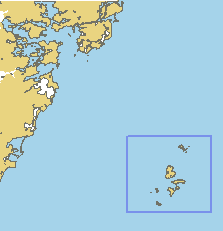
When the product boundaries are drawn, additional product layers are displayed in the Layers window.
Only layers that are not empty are shown. For example, if a workspace contains no IENC products, no IENC layer is created.
You can use these layers to display or hide the boundaries by selecting or clearing the check boxes beside the layer name.
You can select a product boundary and view its metadata information in the Selection and Attributes windows.
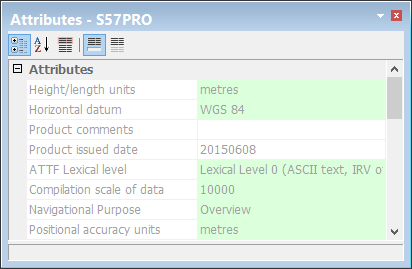
You can also open selected S-57 product boundaries. See Open Selected Product.
To cancel the process, click <Esc>. A dialog box prompts you to confirm the cancellation.