All windows except the Display window can be moved, docked, and combined with other windows.
Position Windows
You can move a window and position it:
• as a floating window
• as a docked window
• as a tab within another window
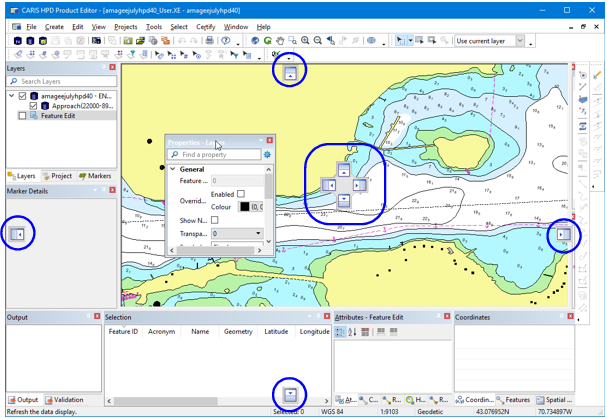
Icons indicate the position the window can take.
Icon | Description |
|---|---|
| Dock the window inside the Display window. Positions are: • top • right • bottom • left |
| Position the window in relation to other windows. • on top of an existing window • to the right of an existing window • below an existing window • to the left of an existing window • as a tab in the existing window (centre icon) |
| Position the window as a separate window at the top of the interface (below the toolbars) |
| Position the window as a separate window at the right side of the interface. |
| Position the window as a separate window at the bottom of the main window. |
| Position the window as a separate window at the left side of the main window. |
Move a tabbed group of windows by grabbing the title bar. Move a single window by grabbing the tab.
1. Position the cursor over the title bar or the tab.
2. Press and hold the mouse button and drag the window.
The positioning icons are displayed.
3. Move the cursor over one of the icons.
A blue shaded area illustrates where the window will be docked.
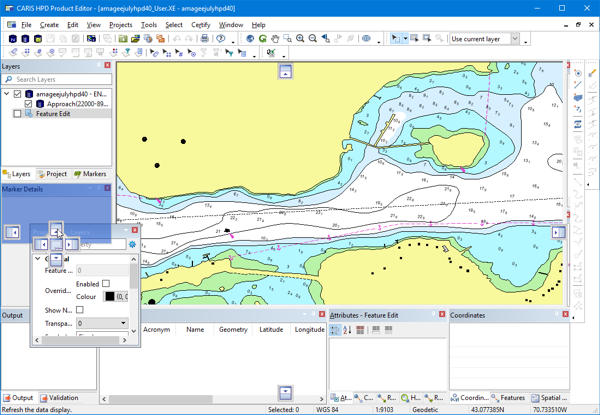
4. Release the mouse button.
The window will be docked in the new location.
To float a window:
1. Move the window.
2. Do one of the following:
• Release the mouse button without touching any positioning icons.
• Press <Ctrl>.
Show and hide windows
Windows can be shown or hidden using the pin at the top right corner.
If the pin is in the vertical position, the window is fixed.

If the pin is in the horizontal position, the window is hidden.

If a window is hidden, only the label is displayed.
Hide Windows
1. Click the pin icon on the top of the window.
The window is minimized so only the label is visible:
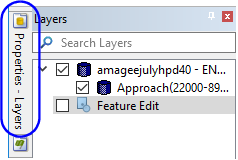
To view a hidden window, move the cursor over the label so that the window slides into view.
The window will remain visible while the cursor is inside it. When the cursor is moved away, the window is hidden again.
Show Windows
1. To restore a hidden window, click the pin icon.


