 CARIS HPD Paper Chart Editor
 CARIS HPD Paper Chart Editor
Menu | Tools > Recut from Source |
A panel boundary in a database chart can be interactively resized and panel features can be recut to fit the resized boundary.
Panel features to be recut must be in HPD source. Charts created from external data or stand-alone charts cannot be updated by recutting. Recutting can be applied only to new editions – updates are excluded.
Cartographic features are retained, but may require editing depending on changes to the boundary.
When features from source are recut, the following results occur:
• Any part of a feature that was outside a panel boundary and is now inside is added.
• Any part of a feature that was inside a panel boundary and is now outside is removed.
• Any part of a feature that was inside a panel boundary and is still inside is retained
Boundaries can be either expanded or reduced. An example of an expanded panel boundary is shown below.
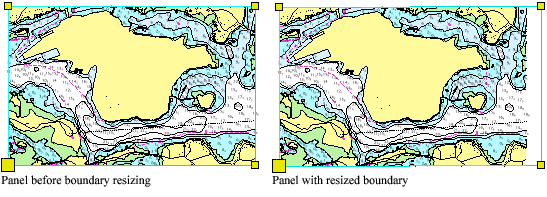
If a panel has a border, the border should be deleted before resizing. A new border can be added later. |
Related commands:
• | • |
Procedure
The boundary must be resized before features can be recut.
1. [Optional] Click the Boundary check box to show panel boundary in Sheet View.
2. Select the Boundary layer in the Layers window.
3. Right-click and select Edit Feature from the pop-up menu.
The boundary is in edit mode. Yellow vertices are displayed on the corners of the boundary.
4. Change the boundary using one of these methods:
• Use the mouse to drag vertices to new positions.
• Type new values in the Coordinates window.
5. Right-click in Layers window and de-select the Edit Feature command.
The boundary is now at its new size and location. Now you can recut area and line features within a panel.
6. Select area or line features along the edges of the old boundary.
7. Select the Recut from Source command.
The panel is updated to show the recut features.
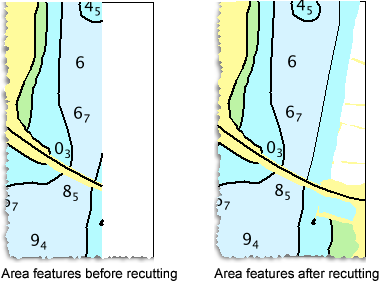
If the panel area was expanded, some features that were outside the original boundary are added to the resized panel.
Use the Compare Panel to Source command to compare the panel features to source features.
Use the Apply Changes in Source to Panel command to import source features into the panel.