You can add hydrographic and cartographic symbols directly to your formatted text or organize the symbols into user-defined categories to make it easy to find and reuse symbols.
Symbols are TrueType fonts (TTF), located in C:\Program Files\CARIS\HPD\<version>\system\PubConfig\SampleFonts. For information on symbol fonts, see Support Files.
Symbols can be saved in symbol template files, which are in XML format. A sample symbol template file (SampleTemplate.xml) is located in C:\Program Files\CARIS\HPD\<version\system\PubConfig\FontTemplate.
Symbol tools are:
Tool
Description
Insert a symbol from a TTF font file or a category into the HTML tab.
Add a symbol from the HTML tab to the Symbol Palette.
Add a symbol from the Symbol Palette to the HTML tab.
Delete a symbol from the Symbol Palette.
Save symbols in the Symbol Palette to a symbol template file.
Open an existing symbol template file.
Insert symbol
A symbol can be directly added to a Notice description or copied to the Symbol Palette and saved in a file.
1. Make sure you are in the HTML tab.
2. Select the Insert Symbol button.
Tool
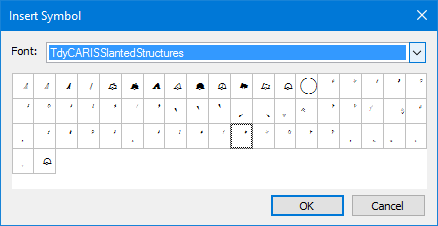
The Insert Symbol dialog box is displayed.
3. Select a typeface from the Font list.
The names of the hydrographic and cartographic symbol fonts start with TdyCARIS. The selected font is displayed.
4. Select a symbol from the font.
5. Click OK.
The symbol is displayed as an image in the HTML tab and listed in the Source tab as follows:
<FONT face=TdyCARISSlantedStructures>!</FONT>
Create symbol category
Create a category for symbols.
Sorting symbols into categories makes it easier to find the symbols that you use most often. Categories can be saved to a symbol template file and reopened later.
One category called Default is supplied.
1. Select Add new category from the Symbol palette categories list.
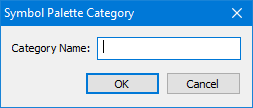
The Symbol Palette Category dialog box is displayed.
2. Type a name for the category and click OK.
The category is added to the list.
Add symbols to category
Add symbols to a category.
Symbols can be added individually or grouped as a combined symbol (for example, a buoy and a light).
Make sure there is nothing in the HTML tab except the symbols you want to add.
1. Select the category in the Symbol palette categories list.
2. Insert one or more symbols in the HTML tab.
3. Select the Add to Palette tool.
Tool
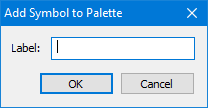
The Add Symbol to Palette dialog box is displayed.
4. Type a label for the symbol and click OK.
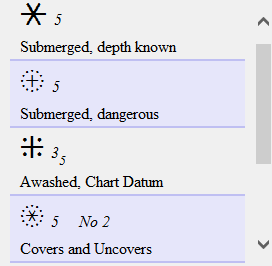
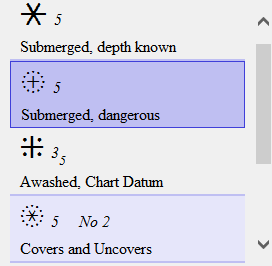
The symbol is added to the category and displayed in the symbol palette area. The label is displayed below the symbol.
Note that every second symbol is highlighted in pale purple.
Repeat until all required symbols are in the category.
Add symbol
Add a symbol from the Symbol Palette to the formatted text in the HTML tab.
1. Select a symbol in the Symbol Palette.
The selected symbol is highlighted in a darker shade of purple.
If you have trouble selecting a symbol, click in the empty area not on the symbol itself or the label.
2. Double-click on the symbol entry or select the Insert Symbol tool.
Tool
The symbol is added to the HTML text box.
Filter symbols
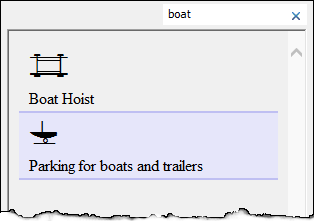
You can filter symbols using the labels.
1. Type in the Filter field.
The symbols that meet the label criteria are displayed. See the example below.
Delete symbol
Remove a symbol from a category.
When a symbol is deleted from the Symbol Palette, it is also deleted from the symbol template file.
1. Select a symbol in the Symbol Palette area.
The symbol is highlighted
2. Select the Delete Symbol tool.
Tool
A message asks you to confirm that you want to delete the symbol.
3. Click Yes.
The symbol is deleted.
Save Symbol Palette file
Save one or more symbol categories to a symbol palette file.
The symbol palette file is an XML file.
1. Select the Save As tool.
Tool
The Save As dialog box is displayed.
2. Select a location for the file and type a file name.
3. Click Save.
Open Symbol Palette file
Open an existing Symbol Palette file.
1. Select the Open Symbol Palette File tool.
Tool
The Open dialog box is displayed.
2. Select the file and click Open.
The categories in the file listed in the Symbol Palette Categories list.