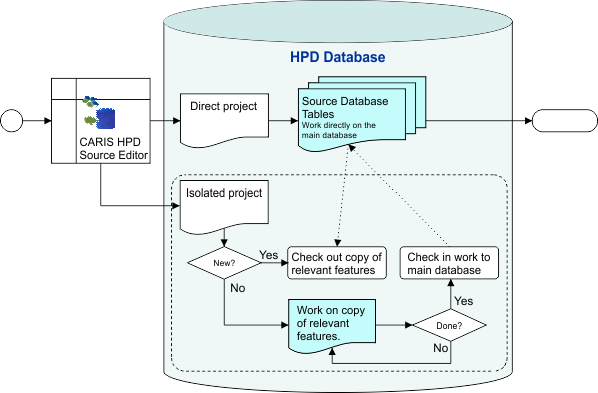
There are two project modes in HPD:
• Direct projects: These are by far the most common type of project, and they are created directly in the source database. Any editing in a direct project changes the source. Direct projects do not need a defined geographic boundary but one can be created if necessary. Features are locked from other users during editing.
• Isolated projects: These projects contain source features that are checked out from the source database. Check-out allows greater flexibility because features in the source are not locked during editing. The source data is not modified until the project data is checked in again.
Isolated project data must be within a defined geographic boundary.
When editing on the checked-out data is completed, conflicts with the source must be resolved before it can be checked in.
If a project is not explicitly declared as an isolated project, it is a direct project.
The relationship between isolated and direct projects is shown in this diagram.
Differences between isolated and direct projects are listed below.
Isolated Projects | Direct Projects |
|---|---|
Apply only to source data processing and can therefore only be opened in Source Editor. | Can apply to source data and can be used to create products, therefore can be opened in both Source Editor and Product Editor. |
A geographic boundary is mandatory. | Geographic boundaries are optional. If the project does not have a boundary, it must have a workspace. |
Changes take place on a copy of the database features and therefore must be checked into the source database. | Modifications are made directly on the source database. |
Contain a single usage. | Can contain multiple usages. Direct projects must be used when working with representations of source data on multiple usages. |
Assigned to a single user | Can be assigned to multiple users. |
Direct projects have the following advantages:
• When a workspace is open, projects can be changed in a single session.
• Projects from previous versions of HPD can be used.
Isolated projects have the following advantages:
• Feature locking is not an issue because you are working with a copy of the features.
• Changes can be made in isolation from the main database, so isolated projects are useful for complex changes.
• Isolated projects can be discarded if mistakes are made and the source database is not affected.
Direct projects without boundaries
Direct projects without boundaries are opened in a workspace. They function the same whether they are opened through the Open Project command or the Open Workspace command. This type of project is suitable for the following tasks:
• Loading data.
• Creating new direct or isolated projects with boundaries.
• Making changes to data that covers a small area in the workspace or that contains a low number of features. When a direct project without a boundary is opened, all the data in the associated workspace is loaded and available for editing.
• Making small changes to features that do not share edges, such as point or sounding data.
• Completing multiple projects within the same session. You can select a new project without closing Source Editor.
• Working with representations and generalization on small datasets. All usage bands are loaded with direct projects.
Direct projects with boundaries
Direct projects with boundaries can be opened using the Open Project command or the Open Workspace command, but there are differences in the way the project is managed.
Open Project | Open Workspace |
|---|---|
Only features within the project boundary are loaded and available for editing. It is strongly recommended that you do not edit edges that are entirely outside the project boundary. Any features that share that edge will not be modified even if the Edit All features command is used. These projects are suitable for: • Making changes to data that covers a large area or to a large number of features. • Working with representations and generalization on large datasets. All usage bands are available but only features within the project boundary are loaded. | All features within the workspace are loaded but they are shaded grey to indicate that they are outside the project boundary. Multiple projects with boundaries can be displayed within the workspace. These projects are suitable for completing multiple projects with boundaries within the same session. You are able to select a new project without closing Source Editor. |
Isolated projects
Isolated projects can be opened only through the Open Project command. Only the features within the isolated project boundary are loaded and available for editing.
It is strongly recommended that you do not edit edges that are entirely outside the project boundary. Any features that share that edge will not be modified even if the Edit All features option is used. |
Isolated projects are suitable for the following:
• Changes to source features such as those involving the updating of area and line features that share edges with other features on the same usage
• Compilation tasks that may take a long time
• Changes that must be made to a large number of features.