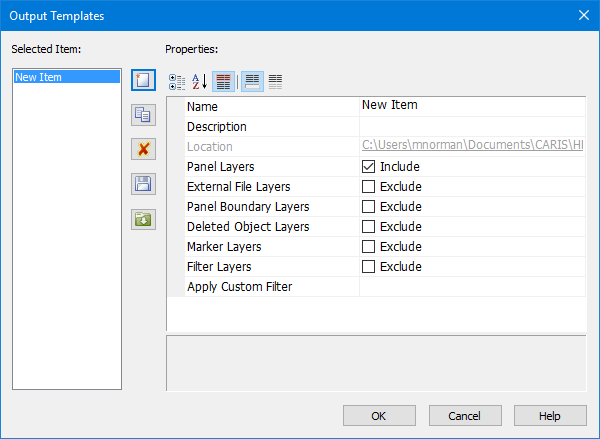
Output template files define which layers can be included or excluded from a chart during export. The following formats support output templates:
• Export Sheet to Spot Separated TIFF
You can use filters in the Output Templates dialog box or design your own filters using the Rule Wizard or Rule files.
Output template files have an OUT (.out) extension and can be reused for different charts. The files are stored, by default, in C:\Users\<username>\Documents\CARIS\HPD\<version>\HPD Paper Chart Editor\OutputTemplates.
Output template files can also be stored in a location referenced by the Output Templates setting in the Options dialog box.
A new output template file can be created when <create and manage> is selected from the export dialog boxes.
Available template options:
Template Options | Description |
|---|---|
New output template | 1. Click New A new output template is added. A new template is automatically named “New Item” and is listed in the Selected Item column. 2. Type a name for the template in the Name field. 3. Type a brief outline about the template in the Description field. 4. Add filters for template. |
Copy output template | 1. Select a template in the Selected Items list. 2. Click Copy A new output template is created. The template is an exact copy of the selected template and has the same name as the selected template with a number appended to the end. |
Delete template | 1. Select a template from the Selected Items list. 2. Click Delete The selected template is removed from the list. |
Save template | 1. Select a template from the Selected Items list. 2. Click Save. The Save As dialog box is displayed. 3. Select a location and type a name for template file. |
Open template | 1. Click Open The Open dialog box is displayed. 2. Select a template file and click Open. The template file is listed in Output Templates. |
By default, all options are set to exclude features. If you do not change these options, these features will be omitted from the charts when the template file is applied.
Note that the options set in the output template file will override the current display setting in the editor |
Option | Description |
|---|---|
Name | Name of the output template file. All new templates are automatically named “New Item” Type a name in the field. |
Description | A brief description of the template file. Type a description in the field. |
Location | Default location where templates are stored. Read-only field. |
Panel Layers | Exclude or include all data on a panel layer. This option is not available if applying filter layers or custom filters. The default setting is Include. Click the check box to change the setting in Exclude. |
Raster Layers | Exclude or include raster layers in the panel. This option is available only to charts with raster layers. This option does not include layers with the “Not for Publication” flag. These layers have to be set separately. The default setting is Include. Click the check box to change the setting to Exclude. |
External file layers | Exclude or include all external file layers during export, including web service and source plugin layers. The default setting is Exclude. Click the check box to change setting to Include. |
Panel boundary layers | Exclude or include panel boundary lines from the Boundary layer during export The default setting is Exclude. Click the check box to change setting to Include. |
Deleted objects layer | Exclude or include all features from the Deleted Objects layer during export. The default setting is Exclude. Click the check box to change setting to Include. |
Markers layer | Exclude or include markers during export. The default setting is Exclude. Click the check box to change setting to Include. |
“Not for Publication” layer | Exclude or include raster layers with a “Not for Publication” flag in The default setting is Exclude. Click the check box to change setting to Include. |
Filter layer | Exclude or include contents of alls filter layer during export. The default setting is Exclude. Click the check box to change setting to Include. |
Apply custom filter | Use the Rule Wizard to set a filter to exclude or include features during export. Click Browse to open the Rule Wizard. |


