External processes can be run from HPD using customized macros in XML-format files. The following processes can be run:
• open another HPD editor
• open a CARIS application
• open a third-party application
• run a batch file
• run a PL/SQL script
Any process that can be run from the command line can be run from a HPD utilities file. More than one utilities file can be used and multiple macros can be contained in a single file.
The utility files define the following parameters:
• name of the utility
• tooltip text
• file type to be opened in the external application
• path and name of the file being opened in the external application
• path and name of the external application
• path and name of the file be re-opened in the HPD editor
• project identifier
• path and name of the output file
• display results in Output window.
See Utility File Structure for more information.
An example utility file is installed with HPD.
If using a single file, then it must be named utilities.xml, and saved into ~/system/Utilities.
To use multiple files, set the Utilities folder location using the Utilities option in the Files and Folders section of the Options dialog box. You must close the editor and restart it to make the option take effect.
All files with the extension .xml in that location will be loaded.
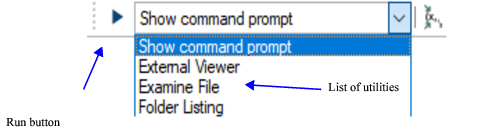
The Utilities tool is added to the Interactive toolbar.
To display the toolbar:
1. Select the View > Toolbars > Interactive command.
If no utility files exist, the toolbar is inactive.
To use a utility:
1. Select a utility from the list.
2. Select features if the utility requires them.
The Run button becomes active.
3. Click Run.
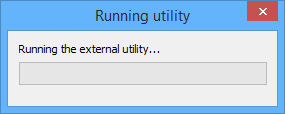
The external process begins and this message is displayed.
If the process opens a selection in another application where it is modified, you must save the file from the external application and to the name and path set in the <ReturnFile> tag.
For example:
• the utility opens Wordpad and displays selected features in GML format
• in utilities.xml, the return file is named SelectionFile.gml
Therefore, you must save the file from Wordpad as SelectionFile.gml.
Data is automatically re-opened in the HPD editor either in the Output window or as an external layer.
You can use Import Selected Objects or Import as Update to integrate the data into HPD.
Utility File Structure
This example utility file runs three processes. The first opens CARIS Easy View1, the second shows features in GML format, and the third lists HPD folders in the Output window.
<Utilities> |
|
<Utility Version="1"> |
<Name>External Viewer</Name> |
<Tooltip>Easy-View S-57</Tooltip> |
<Command>"D:\CARIS\Easy View\10\Bin\CARISEasyView.exe" %SelectionFile% |
%SuperSelectionFile% %ReturnFile%</Command> |
<CommandBlock>false</CommandBlock> |
<CommandOutput> |
<OutputFile>D:\Temp\Test\Utilities.hob</OutputFile> |
<OutputWindow>false</OutputWindow> |
</CommandOutput> |
<ReturnFile> |
<FileName>UtilityTest.hob</FileName> |
<FilePath>D:\Temp\Test</FilePath> |
</ReturnFile> |
<SelectionFile> |
<FileType>hob</FileType> |
<FileName>SelectionFile.hob</FileName> |
<FilePath>D:\Temp\Test</FilePath> |
</SelectionFile> |
<SuperSelectionFile> |
<FileType>hob</FileType> |
<FileName>SuperSelectionFile.hob</FileName> |
<FilePath>D:\Temp\Test</FilePath> |
</SuperSelectionFile> |
</Utility> |
|
<Utility Version="1"> |
<Name>Examine File</Name> |
<Tooltip>Text Listing GML</Tooltip> |
<Command>C:\Program Files\Windows NT\Accessories\wordpad.exe |
%SelectionFile% %SuperSelectionFile% %ReturnFile%</Command> |
<CommandBlock>false</CommandBlock> |
<CommandOutput> |
<OutputFile>D:\Temp\Test\Listing.txt</OutputFile> |
<OutputWindow>true</OutputWindow> |
</CommandOutput> |
<ReturnFile> |
<FileName>SelectionFile.gml</FileName> |
<FilePath>D:\Temp\Test</FilePath> |
</ReturnFile> |
<SelectionFile> |
<FileType>gml</FileType> |
<FileName>SelectionFile.gml</FileName> |
<FilePath>D:\Temp\Test</FilePath> |
</SelectionFile> |
<SuperSelectionFile> |
<FileType>gml</FileType> |
<FileName>SuperSelectionFile.gml</FileName> |
<FilePath>D:\Temp\Test</FilePath> |
</SuperSelectionFile> |
</Utility> |
|
<Utility Version="1"> |
<Name>Folder Listing</Name> |
<Tooltip>List current folder</Tooltip> |
<Command>cmd.exe /c dir/w</Command> |
<CommandBlock>true</CommandBlock> |
<CommandOutput> |
<OutputWindow>true</OutputWindow> |
</CommandOutput> |
</Utility> |
|
</Utilities> |
More than one macro can be run from the utilities file. Each must be contained in <Utility Version=”1”></Utility> tags and follow the syntax of the example shown above.
This table describes each of the tags in utilities.xml.
Tag | Description |
|---|---|
<Utilities> | This is the top-level tag that acts as a container for all other tags in the file. |
<Utility Version=”1”> | All individual tests must be enclosed by the |
<Name> | The name tag contains the title of the utility. This name is shown on the utility list in the toolbar. |
<Tooltip> | The |
<Command> | The command for running the utility. This tag contains the process to be run (application, batch file, etc.) and the parameters passed from other tags in the file. The list of parameters is determined by the process you are trying to implement. The parameters list includes: • The path and name of the executable that is to be opened (Notepad, another application, etc.) • • • |
<CommandBlock> | This tag indicates if the HPD application waits or continues until the process is finished. There are two values: true (wait) or false (continue). |
<CommandOutput> | This tag acts a container for the Output window and output file tags |
<OutputFile> | Complete path and name of the output file. This file shows the results of the process. |
<OutputWindow> | Display the results of the process in the Output window of the HPD editor. |
<SelectionFile> | This tag acts a container for the file type, file name, and file path tags. The selection file tag, along with the other three tags, are used for passing a selection to an external process via a file. |
<SuperselectionFile> | This tag acts a container for the file type, file name, and file path tags. The superselection file tag, along with the other three tags, are used for passing a superselection to an external process via a file. |
<ReturnFile> | This tag acts a container for the file type, file name, and file path tags. The superselection file tag, along with the other three tags, are used for returning a selection or superselection from an external process via a file. |
<FileType> | This can be HOB, GML, SHP |
<FileName> | The name and file type extension of the selection, superselection, or return. This tag is optional. A file name is generated if it is not used. |
<FilePath> | The complete file path of the selection, superselection, or return file. |
1 CARIS Easy View is a free application for viewing hydrographic and chart data. Go to www.caris.com for more information.