 CARIS HPD Paper Chart Editor
 CARIS HPD Paper Chart Editor
CARIS HPD Product Editor
CARIS HPD Source Editor
CARIS S-57 Composer
CARIS Paper Chart Composer
The Properties window contains information about layers that are selected in the Layers window or the Project window. The title of the Properties window changes to indicate the window.
The properties that are displayed vary based on:
• Type of data
• Type of layer or group
• Whether it is selected in the Layers window or the Project window.
When an data layer or background layer is selected, read-only metadata about the layer is displayed.
When any other layer is selected, properties that can be applied to the layer are displayed.
This shows properties for a source selected in both windows.
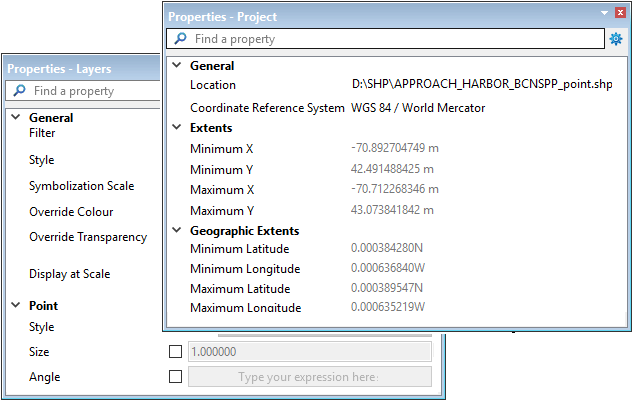
When you select a layer in the Layers window, you can edit Display properties such as colour, symbolization scale, and line thickness.
When you edit properties for a group, only properties that are common to all the grouped layers will be applied.
To retain the property settings, the data sources must be saved as a project.
If you select more than one item in the Project window, the Properties window will display the properties these items have in common.
See also Standard properties and Other Properties.
Visible Properties
You can choose which properties are visible by clicking the gear icon at the top-right corner of the Properties window. The Visible Properties dialog box is displayed.
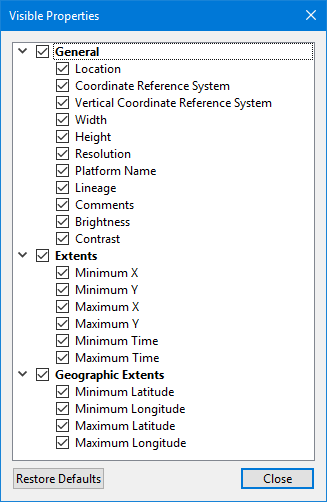
This selects the properties that are displayed by default for a particular data format. Different default properties can be selected for each data format.
Properties are visible when the check box is on and hidden when it is off.
Click Restore Defaults to return the visible properties to their original setting.
Publications Module
The Properties window in the Publications Module displays the attributes related to the notice type or publication section that is selected in the Object Browser window.
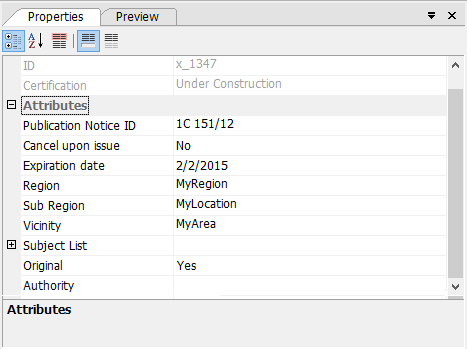
You can edit many attribute values or add new ones. The method of adding or editing the attribute value varies based on the value type.
• If no button is displayed when you click in the grid, you type the value directly into the grid.
• If a browse button ( ) is displayed when you click in the grid, a dialog box is used to enter the value. If this is a text value, you can also type it directly into the grid.
• If a down-arrow ( ) button is displayed when you click, you can select the value from a list or, in the case of dates, from a calendar.
• Description attributes are a special case. They require HTML-formatted text. When you click the browse button, the HTML Editor is displayed.