Product Editor
 Product Editor
Source Editor
Menu | Tools > Coverages > TIN > Generate Coverage Boundary |
This command is only available if the Bathymetry Compilation module is enabled. See Modules for further information |
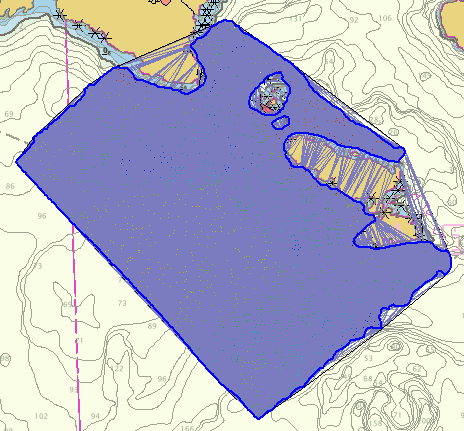
Automatically create a polygon boundary to limit the extents of your TIN. This boundary encompasses only legitimate data and excludes any long edges or holes in the surface. This command is not used as part of TIN preparation, but is used to produce a geometry representing the data coverage for other purposes.
You can also create a coverage boundary manually using the Digitize TIN Boundary command.
Related commands:
• • • • • • | • • • • • • |
Interface
Option | Description |
|---|---|
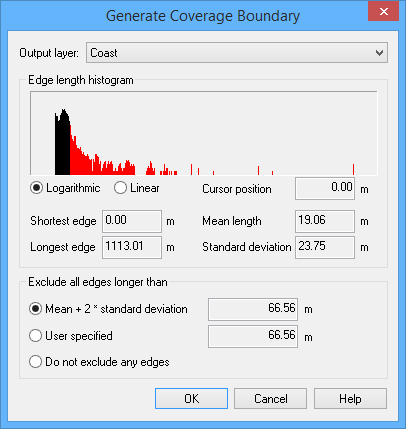
Output layer | The feature layer on which the boundary feature is to be created. The list contains all feature layers currently open. |
Edge length histogram | Important statistical data on the lengths of the edges in the TIN you selected. TIN edge length values are grouped together according to edge lengths. Each group is displayed as a vertical bar in the histogram at the appropriate position along the horizontal axis. The shortest edges are in the first group along the horizontal axis and the longest edges are in the last group. The frequency or count of the edge length values included in each group is displayed along the vertical axis. There are two scale visualization methods for vertical axis data: • Logarithmic: Displays the number of edges in a group over progressively exaggerated vertical intervals (for example, 10, 100, 1000, etc.). The intervals are based on the natural logarithm of the frequency. • Linear: Displays the number of edges in a group over constant vertical intervals (10, 20, 30, and so on). When working with data containing many edges of similar length, it is recommended that you use the logarithmic scale. |
Cursor position | The length of the edge group at the current cursor position when you move the cursor over the histogram. |
Shortest edge | The shortest edge length in the TIN. |
Longest edge | The longest edge length in the TIN. |
Mean length | The mean length of the edges in the TIN. |
Standard deviation | The standard deviation of all the line lengths. |
Exclude all edges longer than: | Define the settings for excluding long edges during boundary creation. The decision of which edges to exclude is made based on the threshold value entered in the Exclude all edges. fields. The threshold value is the longest edge length you want to keep in the TIN. There are three options for the filter: • Mean + 2 x standard deviation, which excludes edges using the following formula: • User specified, where you define the longest edge length allowed, causing all edges longer than this value to be excluded. Type a value in the field or click the histogram. • Do not exclude any edges, where the boundary is generated without excluding any edges. If entering a specific value, it must be longer than the shortest edge length in the TIN. |
Procedure
1. Make the TIN Editor layer active and visible.
2. Select the Generate Coverage Boundary command.
The Generate Coverage Boundary dialog box is displayed.
3. Select the Output layer where the boundary is to be created.
4. Define the exclusion settings.
5. Click OK.
A polygon is displayed around the TIN in the Display window. If a threshold value was specified, any edges longer than the threshold will be outside of the boundary.