CARIS HPD Publications Module
 CARIS HPD Publications Module
Menu | Edit > Associate Objects |
Tool | |
The Associate Objects command links objects that have an association relation in the catalogue.
For example, a cancelled notice is an association relation between a Chart Notice and a Temporary or Preliminary (TorP) Notice. If a Chart Notice is selected and the Associate Objects command is applied, a TorP Notice object must be selected to create a cancelled notice association.
Related commands:
• • • • • • | • • • • • • • |
Procedure
1. Select an object in a publication that has an association relation (as defined in the catalogue).
2. Select the Associate Objects command.
The Select Target Object Type dialog box is displayed.
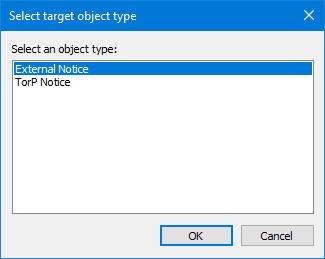
This dialog box lists the objects that have an association relationship with the selected object.
3. Select an association object and click OK.
The dialog box for associating objects is displayed
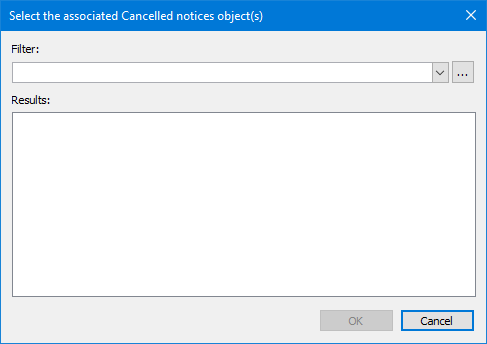
The title bar on top of the dialog box designates the relation that can be set from the selected object.
Filters are used to select the objects that are to be linked to selected object to set the relation.
4. Select a filter using one of these methods:
• Select an existing filter from the Filter list.
• Click Browse to create a new filter or modify an existing one.
The filter selection method is similar to the Rule Wizard.
5. Use new or existing filters to select the related objects.
Objects that meet the filtering criteria are listed:
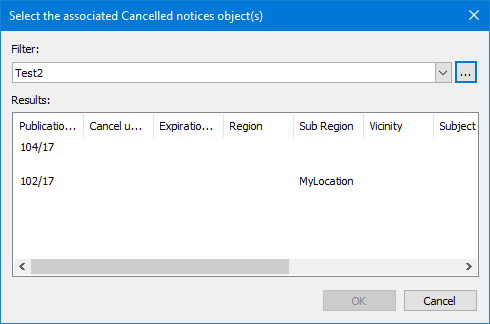
6. Select the object to be associated.
7. Click OK.
The two objects are associated.
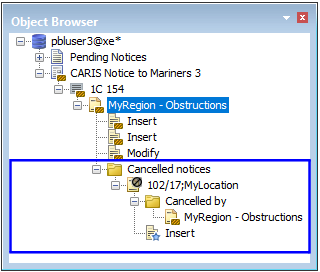
In this case the TorP notice, 102/17 is linked with the MyRegion - Obstructions Chart Notice as an associated cancelled notice.