CARIS HPD Paper Chart Editor
 CARIS HPD Paper Chart Editor
CARIS Paper Chart Composer
Menu | Edit > Alignment > Align Left |
Tool |
|
Menu | Edit > Alignment > Align Centre |
Tool |
|
Menu | Edit > Alignment > Align Right |
Tool |
|
Menu | Edit > Alignment > Align Top |
Tool |
|
Menu | Edit > Alignment > Align Middle |
Tool |
|
Menu | Edit > Alignment > Align Bottom |
Tool |
|
Arrange selected features in relation to superselected features.
Alignment commands are applied mostly to reposition text. However, you can align and space any selected features (for example, graphics or text blocks).
Commands can be applied sequentially. For example, apply the Align Top command and then apply the Space Evenly Across command.
See the following table for Align options.
Command | Description |
|---|---|
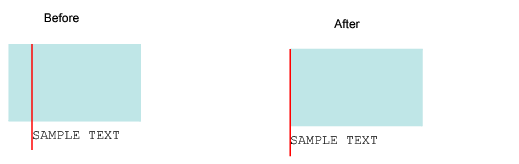
Align Left | Align the edge of a selected feature to the left edge of another selected feature. For example, an area feature and a text feature are selected. When Align Left is applied, the text is shifted horizontally to the left edge of the area, as shown by the red line.
|
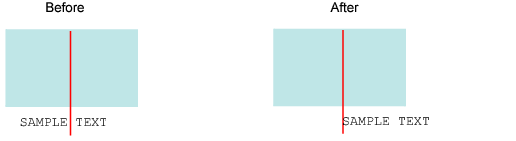
Align Centre | Align the left edge of a selected feature to the centre of another selected feature. For example, an area feature and a text feature are selected. When Align Centre is applied, the text is shifted horizontally to the centre of the area feature, as shown by the red line.
|
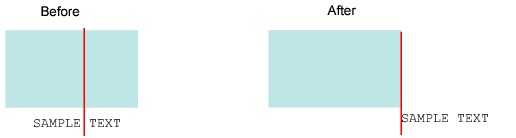
Align Right | Align the left edge of a selected feature to the right edge of another selected feature. For example, an area is selected and then a text feature. When Align Right is applied, the text is aligned with the right edge of the area, as shown by the red line.
|
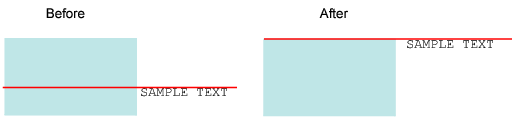
Align Top | Align the top edge of a selected feature with the top edge another selected feature. For example, an area is selected and then a text feature. When Align Top is applied, the text is shifted vertically so that the top edge is aligned with the top edge of the area, as shown by the red line.
|
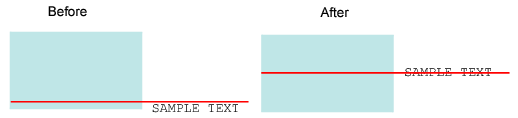
Align Middle | Align the middle section of a selected feature to the middle section of another feature. For example, an area is selected and then a text feature is selected. When Align Middle is applied, text is shifted vertically so that the middle of the text is aligned with the middle of the area, as shown by the red line.
|
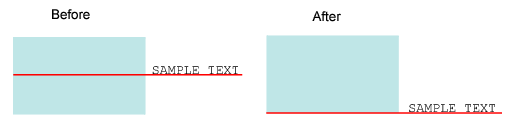
Align Bottom | Align the bottom edge of a selected feature to the bottom edge of another selected feature. For example, an area is selected and then a text feature is selected. When Align Bottom is applied, the text is shifted vertically to the bottom edge of the area feature, as shown by the red line.
|
Related commands:
• | • |
Procedure
1. Select the feature to which the other feature(s) will be aligned.
2. Select the feature(s) to be shifted.
3. Select an Align command.
The features are aligned in relation to the first selected feature.