 CARIS HPD Paper Chart Editor
 CARIS HPD Paper Chart Editor
CARIS HPD Product Editor
CARIS HPD Source Editor
CARIS S-57 Composer
CARIS Paper Chart Composer
Menu | Tools > Coverages > TIN > Create TIN |
Tool |
|
This command is only available if the Bathymetry Compilation module is enabled. See Modules for further information |
A Triangulated Irregular Network (TIN) is a triangulated surface constructed from input data containing 3D data points.
TINs can be created for raster surfaces, point clouds and feature layers containing features with a depth or height values. By default, data sources can contain up to 3 million points to be included in the TIN. Depending on the resources of the computer that you are using, the number of points that can be included in the TIN could be much greater than that. This value can be changed if needed. See Procedure: Define maximum points per TIN for more information.
A TIN can be created for all data points in a source or for the boundary of the data. You can generate a boundary TIN if the source is a raster surface which will exceed the limit of points supported for a single TIN.
If the TIN is created from a raster band, the TIN will be constructed using values from the selected band.
If the TIN is created from a feature layer, the TIN will be constructed using the features listed in the system file called elevationlookup.xml. This can be found in C:\Program Files\CARIS\<application>\<version>\modules\BASE Editor\support.
The list of features can include any point, line or area feature with a depth or height attribute, if necessary.
TIN Layers
The new TIN is added to the layers window as a separate data source and is named according to the data source from which it was created. Each TIN contains two layers:
• The TIN itself: This is named for the band or attribute from which it was created.
• TIN Editor: This lets you perform various edits on the TIN, including the creation of features. When edits are applied to a TIN, they are recorded in a tools file (.tls).
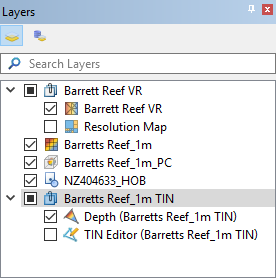
These layers are not saved when you save the project; you must recreate the TIN each time you open the data. If edits were applied to the TIN, they will be reapplied using the .tls file.
If the TIN will be cut, it is recommended that you remove long edges.
Related commands:
• • • • • • | • • • • • • |
Interface
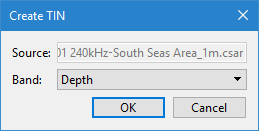
Option | Description |
|---|---|
Source | The name and location of the input file. The Source is defined by the coverage that was selected at the time the command was initiated. This field cannot be changed. |
Band | The band in the input coverage containing the values that will be used to calculate the TIN. |
Procedure: Create a TIN
1. From the Layers window, select a data source containing elevation or depth values.
2. Select the Create TIN command.
The Create TIN dialog box is displayed.
3. Select a Band from the list.
4. Click OK.
The TIN layer is created and added to the Layers window.
5. Refresh the display to view the TIN.
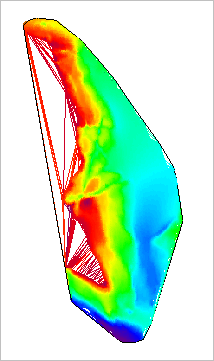
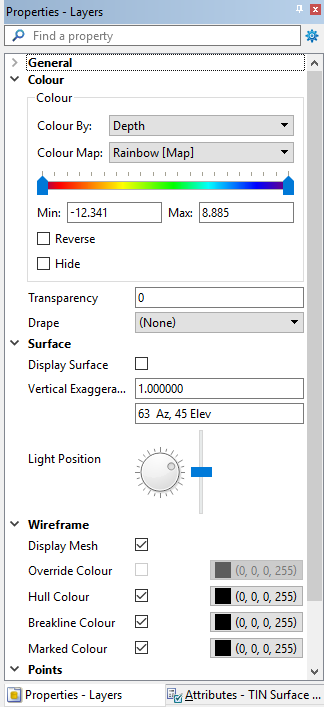
When the TIN attribute layer is active, you can edit the appearance of the TIN using the Colour and Wireframe properties in the Properties window .
Procedure: Define maximum points per TIN
TIN surfaces are stored in memory, not on disk, which means that the size of the TIN is limited by the resources of the computer.
The size of a TIN is determined by the number of points in the source data. To prevent allocating too much memory to the TIN creation, an option called Maximum Number of Points in a TIN can be used. The default limit is 10 million points. If you need to create a bigger TIN, and the memory needed to do so is available, this limit can be increased.
The maximum number that can be entered is |
To change the points limit:
1. Select the Options command.
Menu | Tools > Options |
The Options dialog box is displayed.
2. Select the Coverage category.
3. Select Maximum Number of Points in a TIN.
4. Type the number of points in the box.
5. Click OK to apply the change and close the dialog box.
The maximum points per TIN limit is updated.
