Menu | Edit > Edit Mode |
Tool |
|
Key | <Ctrl+E> |
Menu | Edit > Edit Mode |
Tool |
|
Key | <Ctrl+E> |
You can edit both the format of a text string and its content. You can also modify certain aspects of the text using the toolbar or a a pop-up menu.
Interface

The Text toolbar is used both to create text and to edit it.
If you create text, all settings in the toolbar are applied to the new text.
Always check the toolbar settings before adding text. Toolbar settings are remembered from the last selected text and will be applied to any new text if you do not change them first. |
If you edit existing text, some settings are applied to the entire text string and some only to selected characters.
Toolbar commands
• • • • • | • • • • |
Procedure: Reformat text
1. Select a text feature.
2. Select the Edit Feature command.
The point or line that defines the position and shape of the text is displayed.
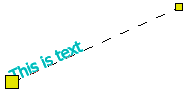
You can now edit the text.
Procedure: Format text
You can change the format of all or part of the text using the Text toolbar or the pop-up menu.
1. Double-click on the text feature.
A yellow text box is displayed.
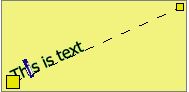
A text cursor is displayed at the point where you clicked.
2. Select the characters you want to reformat.
This can be part or all of the text. You can select text using the following methods:
• Mouse: Press and hold the mouse button and drag. Or you can double-click on the text. This will select the current word plus the following space.
• Keyboard: Use the right and left arrow keys to move through the text, then use <Shift+left-arrow> or <Shift+right-arrow> to select it.
The characters you select are highlighted.
3. Select the appropriate settings from the toolbar or the pop-up menu.
The part of the text that is highlighted is changed.
Procedure: Edit content
1. Double-click on the text feature or right-click and select Edit Label Text from the pop-up menu
A yellow text box is displayed.
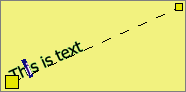
2. Move the text cursor to the location to be edited.
You can move the text cursor by clicking at the new location or by using the arrow keys. You can select text by dragging the text cursor or by using <Shift+arrow>.
3. Delete the old text if necessary.
Use <Backspace> or <Delete> to delete text.
4. Type to insert the new text.
5. Press <Enter>.
The new text is displayed.
Procedure: Edit the line
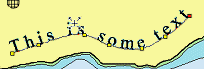
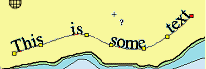
You can edit the line that defines the shape of the text. This cannot be done while you are modifying the text string. If the yellow text edit box is visible, click outside it. You will see the text baseline and the points (vertices) that define it.
To add a vertex:
1. Position the mouse pointer on the line, at the position of the new vertex.
2. Press and hold <Ctrl>.
The mouse pointer changes ( ).
).
3. Click.
The vertex is added.
To move one or more vertices:
1. Click on a single vertex or use <Shift+click> or <Ctrl+click> to select multiple vertices.
2. Drag the vertex or group of vertices to a new location.
Procedure: Other editing tools
This table describes other ways you can change the text:
To... | Do this... |
|---|---|
End Text | Complete the text string. 1. Finish typing the line of text. 2. Select the End Text command. Pop-up: Text Editing > End Text Key: <Enter> |
Edit Label Text | Start the text editor. See Edit Text. |
Make text point-justified. | Change curved text to point-justified. A point-justified text feature is defined by a single point. Pop-up: Text Editing > Make Point Justified Label Toolbar: <none> |
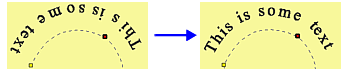
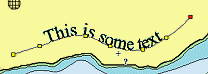
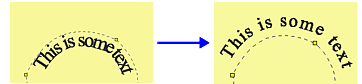
Make text curved. | Curved text is defined by two or more points. Pop-up: Text Editing > Make Curved Label Toolbar: <none> The text is redrawn with two points, one at the beginning and one at the end. You can add vertices then move them to change the shape of the curve. |
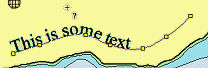
Make the text irregular | Irregular text has a vertex at every character. This lets you move each character individually to fit the curve to irregular shapes.
Pop-up: Text Editing > Make Irregular Label Toolbar: <none> The length of the line is changed to the length of the text. |
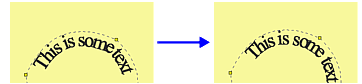
Flip the text | Flip the text so that it is upside-down in relation to its previous orientation.
Pop-up: Text Editing > Flip Toolbar: <none> |
Insert a reference point | A reference point is a point on the line around which the text feature can be rotated. 1. Select the Insert Reference Point command. The pointer changes ( 2. Click on the vertex you want to be the reference point. Pop-up: Text Editing > Insert Reference Point Toolbar: <none>\ |
Left align text | Align the text to the left end of the defining line.
Pop-up: Text Editing > Left Toolbar: |
Centre text | Centre the text on the defining line.
Pop-up: Text Editing > Centre Toolbar: |
Right align text | Align the text to the right end of the defining line.
Pop-up: Text Editing > Right Toolbar: |
Stretch text | Justify text to fit the full length of the defining line by adding spaces between both words and characters
Pop-up: ext Editing > Stretched Toolbar: |
Space text | Justify text to fit the full length of the defining line by adding spaces between words only.
Pop-up: Text Editing > Spaced Toolbar: <none> |
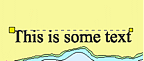
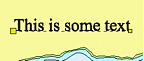
Baseline | Place the baseline of the text against the defining line. A baseline is an imaginary line upon which most letters “sit”.
Pop-up: Text Editing > Baseline Toolbar: <none> |
Font Upper | Move the text down so that the defining line is at the top. This places the line slightly above the upper edge of the selected font.
Pop-up: Text Editing > Font Upper Toolbar: <none> Font Upper will take into consideration any vertical space built into the font. The tops of the ascenders may not touch the line. |
Font Lower | Move the text up so that the descenders sit on the line.
Pop-up: Text Editing > Font Lower Toolbar: <none> Font Lower will take into consideration any vertical space built into the font. The bottoms of the descenders may not touch the line. |
Above | Move the text down so that the top of the upper case letters is against the defining line.
Pop-up: Text Editing > Above Toolbar: <none> Above does not take into consideration any vertical space built into the font. The tops of the ascenders will always touch the line. |
Below | Move the text up so that the descenders sit on the line.
Pop-up: Text Editing > Below Toolbar: <none> Below does not take into consideration any vertical space built into the font. The bottoms of the descenders will always touch the line. |
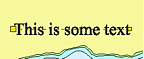
Centre | Centre the text vertically on the line.
Pop-up: Text Editing > Centre Toolbar: <none> |
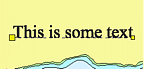
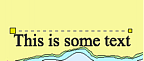
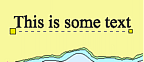
Apply a horizontal offset to the text | Offset the text horizontally in millimetres at map scale. 1. Select the Horizontal Offset command. A dialog box is displayed. 2. Type an offset value. This can be a positive or negative value. Results will vary according to the orientation of the text and the shape of the curve. If the text is a simple curve, oriented to north: • A negative value moves the text to the left. • A positive value moves the text to the right. 3. Click OK. The text is offset by the value entered. Example: Text offset 2 millimetres to the right.
Pop-up: Text Editing > Horizontal Offset Toolbar: <none> |
Apply a vertical offset to the text | 1. Select the Vertical Offset command. A dialog box is displayed. 2. Type an offset value. This can be a positive or negative value. Results will vary according to the orientation of the text and the shape of the curve. If the text is a simple curve, oriented to north: • A negative value moves the text down. • A positive value moves the text up. 3. Click OK. The text is offset by the value entered. Example: Text offset 3.5 millimetres upward.
Pop-up: Text Editing > Vertical Offset Toolbar: <none> |
Orient to North | 1. Select the Orient to North command. The text is oriented to the north. Pop-up: Text Editing > Orient to North Toolbar: <none> |
Move text | 1. Click on the text but not on a vertex. 2. Drag the text to a new location. |
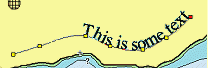
Rotate text | 1. [Optional] Select a vertex. 2. Position the mouse pointer over the text. 3. Press and hold <Shift>. The mouse pointer changes ( 4. Drag the mouse pointer. The text is rotated around the selected vertex. If no vertex is selected, the text is rotated around the first point. |
Modify the curved line | 1. Click and drag individual vertices to adjust the shape of the line. |






 ).
).