CARIS HPD Paper Chart Editor
 CARIS HPD Paper Chart Editor
CARIS HPD Source Editor
CARIS HPD Product Editor
Pop-up | Properties (Feature Palette) |
The Feature Palette can be used to modify the feature acronym, attributes or symbolization of a selected entry.
These changes can be saved in a template and re-opened for future use in another chart or layer.
The feature can be loaded from a selection in the layer or from the catalogue. See Load Features from Catalogue.
Related commands
• • • • • • | • • • • • • |
Interface
Feature Template Properties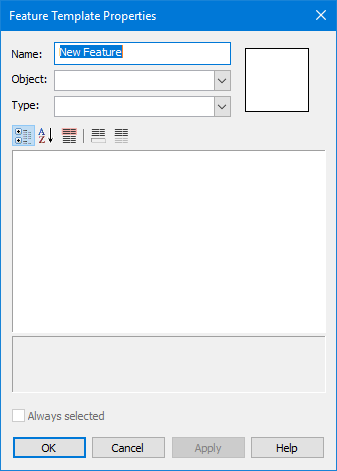
Option | Description |
|---|---|
Name | A name for the feature. |
Objects | Feature acronym. Select from the list. |
Type | The feature type. Select from the list. |
Attribute list | The attributes associated with feature acronym. Set the values. Red values are mandatory. |
Always selected | On: The accessory of the feature will always be associated with the feature. Off: You will have to associate the accessory when you add the feature. This option is not available if the feature does not have an accessory. |
The following commands are available on the toolbar:
Button | Description |
|---|---|
| Sort the attributes by category. |
| Sort the attributes alphabetically. |
| Always display mandatory attributes first. |
| Display a description panel at the bottom of the dialog box. A short description of the selected attribute will be displayed here. |
| Display only defined attributes. |
The following commands are available on a pop-up menu:
Command | Description |
|---|---|
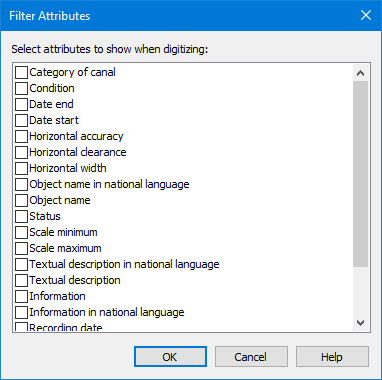
Filtered Attributes | Filter the attributes so that only certain ones will be visible when digitizing. The Filter Attributes dialog box is displayed.
Attributes with a check beside them will be displayed. If no attributes have a check mark, all attributes will be displayed. |
Remove Filter | Remove the filter created using the Filtered Attributes command. |
Copy | Copy the selected attribute and its value to the clipboard. This can be pasted to a text file as a tab-separated list. |
Copy All | Copy all attributes and values to the clipboard. This can be pasted to a text file as a tab-separated list. |
Undefined | Assign the value “undefined” to the selected attribute. |
Unknown | Assign the value “unknown” to the selected attribute. |
Procedure
1. Select an icon.
2. Select the Modify Properties command.
The Feature Template Properties dialog box is displayed.
3. Define the necessary options.
4. Click OK.