 CARIS HPD Paper Chart Editor
 CARIS HPD Paper Chart Editor
CARIS HPD Source Editor
CARIS S-57 Composer
CARIS Paper Chart Composer
Menu | Create > Lines > Corridor |
Tool |
|
Create a new area around existing lines or areas.
A corridor can be created inside and outside the existing area, inside only, or outside only.
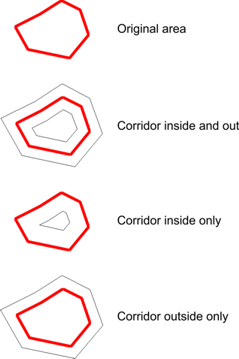
The width of the corridor can be approximate or exact. You choose an approximate width by clicking on the display. You choose an exact width by entering the value in a dialog box.
By default, a corridor extends to both sides of a line and both inside and outside an area. To restrict the corridor to one side, press and hold <Shift> while creating the corridor.
Corridors will not be created if self-crossing lines would result.
This command uses the following Display Units options:
• Initial Measurement Reference for Projected Display
• Distance Units and Precision
Results will generally be better with a projected coordinate reference system than with a coordinate reference system , such as Geographic (Lat/Lon), which is not projected by definition. |
For complete information about creating new features, see Create Features.
Related commands:
• • • • • | • • • • • |
Procedure: Approximate corridor width
1. Select a line or area.
2. Select the Create Corridor command.
3. Select an acronym and set any necessary attributes as described in Create Features.
4. Click or <Shift>+click on a point at the required distance.
The corridor is created.The command remains active to let you create additional corridors using the same acronym and attributes.
5. [Optional] Click again as many times as required to create more corridors.
6. Reselect the Create Corridor command or press <Esc> to exit.
Procedure: Specific corridor width
1. Select a line or area.
2. Select the Create Corridor command.
3. Select an acronym and set any necessary attributes as described in Create Features.
4. Select the Set Corridor Offset command.
Pop-up | Corridor > Set Corridor Offset (Display window) |
Key | <Insert> |
The offset dialog box is displayed.
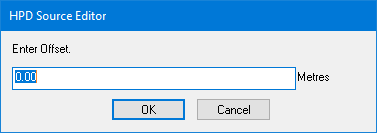
5. In Enter Offset, type a width for the corridor and click OK.
6. Do one of the following:
• Click anywhere in the Display window to create a corridor on both sides of the line or area.
• <Shift>+click on one side of the selected feature to create a corridor on just one side of the line or area.
The corridor is created.The command remains active to let you add more corridors using the same acronym and attributes.
7. [Optional] Change the offset value.
8. [Optional] Click as many times as required to create more corridors.
9. Reselect the Create Corridor command or press <Esc> to exit.
