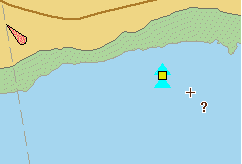
Move a point feature using the Display window or the Coordinates window.
Related commands:
Procedure: Display window
1. Select the feature.
2. Select the Edit Feature command.
A yellow square marks the position of the feature.
3. Move the cursor over the feature.
The cursor changes (  ) when you are over the yellow square.
4. Click once.
The yellow square turns red.
5. Press and hold the mouse button and drag the feature to a new location.
6. Release the mouse button.
Procedure: Coordinates window
1. Select the feature.
2. Select the Edit Feature command.
The feature is listed in the Coordinates window.
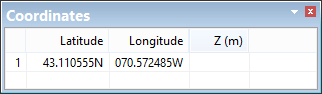
3. Double-click on the coordinate you want to change.
4. Edit the existing value or type a new value.
5. Press <Enter> or click in another cell.
The coordinate value is changed and the point is moved.
6. Repeat to change the other coordinate value.