CARIS HPD Source Editor
 CARIS HPD Source Editor
Menu | Tools > Limits and Boundaries > Interactive Baseline |
Tool |
|
This command is only available if the Limits and Boundaries module is enabled. See Modules for further information |
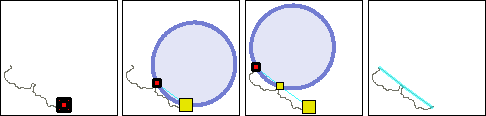
Digitize a baseline interactively. A circle is attached to the mouse pointer. Points must be added where the coastline or low-water line meets the circumference of the circle, and the circle must not cross the coastline.
The circle simulates running a wagon wheel over the coastline or low water line. The radius of the wheel equals the value of the limit line. Points that are touched by the wheel are called contributing points because they contribute to the limit line. A large wheel touches fewer points than a small wheel, therefore baselines created using large radiuses will be smoother than those using smaller radiuses.
This is similar to the Wagon Wheel Filter command except that it is interactive.
Related commands:
• • • • | • • • • |
Interface
Option | Description |
|---|---|
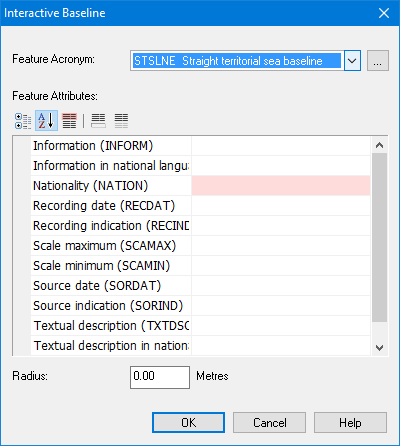
Feature Acronym | Click Browse (...) to select the feature acronym. The setting you last used will be remembered. |
Feature Attributes | The attributes are displayed here. Required attributes are tinted red. |
Radius | The radius of the wagon wheel in nautical miles. This represents the greatest allowable distance between points. The setting you last used will be remembered. |
Toolbar:
Tool | Description |
|---|---|
| Sort attributes by category. |
| Sort attributes in alphabetical order. |
| Always display mandatory attributes first, regardless of sort method. |
| On: Display a description of the selected attribute at the bottom of the dialog box.
Off: Do not display a description. |
| On: Display only attributes with defined values. Off: Display all attributes. |
Procedure
1. Choose the Interactive Baseline command.
The Interactive Baseline dialog box is displayed.
2. Select a feature acronym.
3. Set any required attributes.
4. Enter a radius.
5. Click OK.
6. Click at the start point of the new line.
7. Press and hold the left mouse button and move the mouse.
A circle is attached to the mouse pointer. This circle is anchored at the point you just entered; it will “slide” around as the pointer moves. If the circle disappears, the pointer has moved outside the limit indicated by the circle.
8. Release the mouse button to place the next point.
9. Repeat until the entire line has been added.
10. Right-click and select Line Digitizer > End Line.
The baseline is drawn.