CARIS HPD Source Editor
 CARIS HPD Source Editor
Menu | Tools > Limits and Boundaries > Median Line |
Tool |
|
This command is only available if the Limits and Boundaries module is enabled. See Modules for further information |
A median line is a boundary at equal distance from two adjacent or opposite States. This line is called an equidistant line when the coastlines are adjacent and a median line when they are opposite. The same command is used for both cases.
Median lines are created from baselines on two separate layers, one for each State or group of States.
Related commands:
• • • • | • • • • |
Interface
Option | Description |
|---|---|
General | |
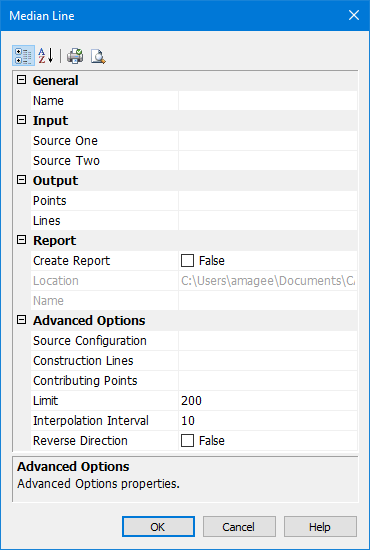
Name | The name of the layer that will contain the new line. Select from the list. This can be the same as the source layer. |
Input | |
Source One | The baseline of one state. Select from the list: • [blank line]: This will clear the text box. • Superselection: The superselected line, if any. This will not be available if no features are selected. • Selection: All selected lines, if any. This will not be available if no features are selected. • [list of layers]: All available layers. All lines in the layer will be used as source lines. It is recommended that you select a layer only if it contains suitable source lines and no other lines, such as a filtered layer the required baseline. This cannot be the same layer as Source Two. |
Source Two | The baseline of the other state. Select from the list: • [blank line]: This will clear the text box. • Superselection: The superselected line, if any. This will not be available if no features are selected. • Selection: All selected lines, if any. This will not be available if no features are selected. • [list of layers]: All available layers. All lines in the layer will be used as source lines. It is recommended that you select a layer only if it contains suitable source lines and no other lines, such as a filtered layer that contains only coastlines. This cannot be the same layer as Source One. |
Output | |
Points | Output the median line as a series of points, marked by symbols. Set the acronym and attributes of the symbol. Type an acronym directly or select from the list. • [blank line]: This will clear the text box. • [recent objects]: A list of any recently used objects. • Templates: Displays the Select Template dialog box. See “Using Templates with Limits and Boundaries” on page 33 for details. • Objects: Displays the Select Object dialog box. Select an acronym from the list of Feature Acronyms then define the attributes. You can select both Points and Lines. |
Lines | Output the median line as a line. Set the acronym and attributes of the line, Type an acronym directly or select from the list. • [blank line]: This will clear the text box. • [recent objects]: A list of any recently used objects. • Templates: Displays the Select Template dialog box. See “Using Templates with Limits and Boundaries” on page 33 for details. • Objects: Displays the Select Object dialog box. Select an acronym from the list of Feature Acronyms then define the attributes. You can select both Points and Lines. |
Report | |
Create Report | Output points to a text file: • False: No report file will be created. • True: Generate a report. The Location and Name properties become active. |
Location | Accept the default or click browse (...) to select a location for the report. |
Name | Type a name for the report. |
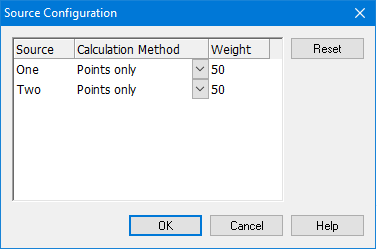
Source Configuration | Here you configure the source baselines. Click Browse (...). The Source Configuration dialog box is displayed.
Set the following properties for each source: • Calculation Method: Select from: • Points only: The source will be treated as points. Only the vertices of any lines will be considered. • Lines as interpolated points: Any line on the source will be interpolated with points at the interpolation interval specified in the main dialog box. Use this to calculate a median line using both normal baselines and straight baselines or to treat straight baselines as though they were normal baselines. • Lines as continuous segments: All lines on the source will be treated as continuous geodetic segments. This is not available if the source contains points. Both sources must contain only lines. • Weight: The median line is weighed towards one shore or the other.The weighted value is the ratio of the two values. For example, if source one is weighted as 3 and source two as 5, the ratio will be 3:5. Enter as an integer greater than 0. |
Construction Lines | Draw construction lines. Construction lines join the contributing points of the two sources to the turning points on the median line. Type an acronym directly or select from the list. • [blank line]: This will clear the text box. No construction lines will be drawn. • [recent objects]: A list of any recently used objects. • Templates: Displays the Select Template dialog box. See “Using Templates with Limits and Boundaries” on page 33 for details. • Objects: Displays the Select Object dialog box. Select an acronym from the list of Feature Acronyms then define the attributes. |
Contributing Points | Mark the contributing points with a symbol. Set the acronym and attributes of the symbol here. Type an acronym directly or select from the list. • [blank line]: This will clear the text box. No contributing points will be drawn. • [recent objects]: A list of any recently used objects. • Templates: Displays the Select Template dialog box. See “Using Templates with Limits and Boundaries” on page 33 for details. • Objects: Displays the Select Object dialog box. Select an acronym from the list of Feature Acronyms then define the attributes. |
Limit | Distance at which to extrapolate the median line using the ending or extreme points from both sources. If used, this must be a positive numeric value. If no value is entered, a default value will be used. The last value set is remembered. |
Interpolation Interval | The interval of interpolation between points for lines on the sources. This is used for each input source only when the source configuration method is Lines as interpolated points. Type a value. The default is 10. Units are based on the options settings. It is recommended that you use International Nautical Miles for the units. The last value set is remembered. |
Reverse Direction | For adjacent countries, the equidistant line must be seaward. If the output of this command is landward, undo the command and use this option to reverse the direction of the of the line: • True: Reverse the direction in which the equidistant line is calculated. • False: Use the default direction for calculation of the equidistant line. |
Toolbar:
Icon | Description |
|---|---|
| Categorized. Display the properties in their categories. |
| Alphabetical. Display the properties in alphabetical order. |
| Quick print. Prints the current settings of the dialog box. Displays a Print dialog box. |
| Print Preview. Displays the current settings of the dialog box. |
Procedure
1. Select the Median Line command.
The Median Line dialog box is displayed.
2. Set any necessary options.
3. Click OK.