 CARIS HPD Publications Module
 CARIS HPD Publications Module
Menu | Publication > Generate List Records |
Tool | |
Capture information from an HPD GML product and insert this information as list records.
The GML product should contain only features that you want to record (e.g., lights or wrecks). It must also be in the same schema as the Publications Module project.
The Product Editor does not need to be open to access the GML product.
The record information is determined by the rules contained in the XSLT file that is used to generate the list record.
Related commands:
• • • • • • • | • • • • • • |
Interface
Property | Description |
|---|---|
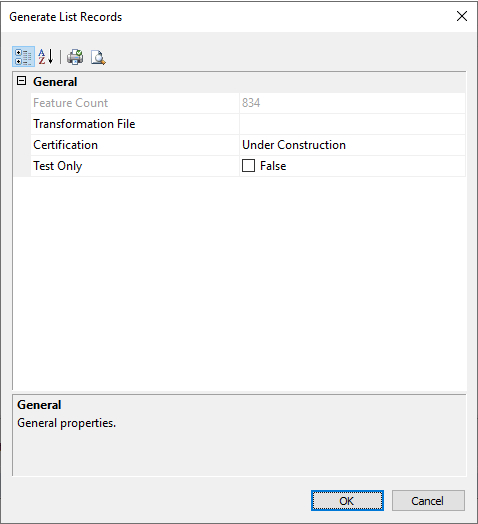
Feature Count | Total number of features in the GML product. This is a read-only field. |
Transformation File | The path and name of the XSLT file used to format the record. 1. Click Browse. The Open dialog box is displayed. 2. Select an XSLT file. 3. Click Open. |
Certification | Certification status of the new record: • Under Construction • Not Verified: • Accepted • Verified • Rejected. The default is Under Construction. For more information, see Certification. |
Test Only | True: Run a diagnostic tool to examine the in-memory XML files that are generated from the XSLT processor and customize the XSLT rules. 1. Enable Test Only. A Save As dialog box is displayed. 2. Type the name of the file. 3. Click Save. Two XML files are created and saved to the same directory as the XSLT file: • The input file contains only the information from the HPD editor. It has • The output file contains the Publications Module XML that is created when the input file is combined with the rules from XSLT file. This is the file that is used by Publications Module. It has 4. Click OK. The records are listed in the Notices window. You can view both the False: No test is run. For more information on the in-memory XML documents and XSLT, see the Publications section of the HPD® User Guide. |
Procedure
1. Select a list record publication in Object Browser.
2. Select the Generate List Records command.
The Select Product dialog box is displayed. This lists the GML products available in the schema
3. Select the product you want to use.
4. Click OK.
A progress indicator shows the rate at which the product information is loaded into Publications Module.
The Generate List Records dialog box is displayed.
5. Complete the fields in the dialog box (see above table) and click OK.
Another Generate List Records dialog box is displayed. This dialog box selects the publication section for the records.
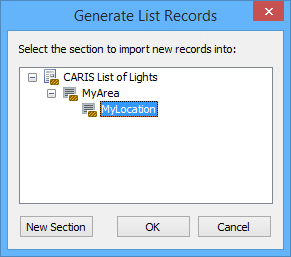
6. Select a section to insert the list.
7. [Optional] Click New Section to create a publication section from the dialog box. See below for more information.
8. Click OK.
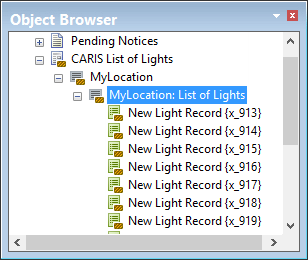
A message is displayed informing you of how many new list records are created.
The list is created and displayed in the Object Browser.
New Section
The New Section option creates a publication section from the Generate List Records dialog box.
1. Click New Section.
The Section Type dialog box is displayed.
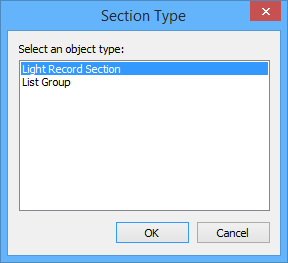
2. Select Light Record.
3. Click OK.
The section is displayed in the Generate Light Records dialog box.
