 CARIS HPD Publications Module
 CARIS HPD Publications Module
Menu | Publication > Cancel Notice(s) |
A notice that has been previously issued may become obsolete and must be replaced with more current information.
For example, a preliminary notice that identifies the approximate location of a potential hazard is later replaced with a more accurate permanent notice.
The Cancel Notice command establishes a relationship between a current permanent notice and temporary one that was previously created.
This command can be applied both to notices that are created in Publications Module and notices that are external to the application.
Related commands:
• • • • • • • | • • • • • • • |
Interface
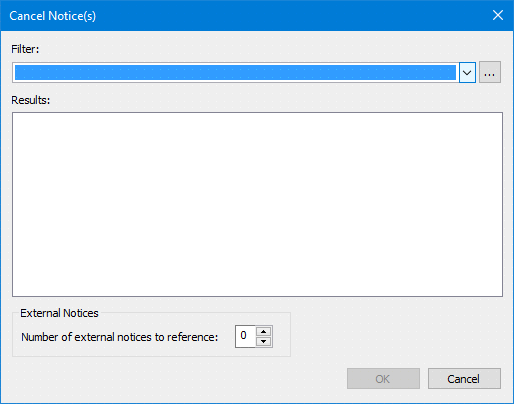
Option | Description |
|---|---|
Filter | A list of saved filter files. that can search notices. A filter file can be created by clicking Browse (...) to start the Rule Wizard. |
Results | List of notices that are located by the selected filter |
Number of external notices to reference | The number of external notices to be cancelled. External notices were created outside of Publications Module. |
Procedure: Notices in Publications Module
1. Select a pending or publication notice that will cancel an existing notice.
2. Select the Cancel Notices command.
The Cancel Notices dialog box is displayed.
Notices that were created in Publications Module can searched by using filtering rules in the Rule Wizard.
3. Click Browse beside the Filter field.
The main Rule Wizard dialog box is displayed. The Rule Wizard creates and opens filtering rules for searching notices.
4. Create a new rule or use an existing rule using the Rule Wizard.
The Cancel Notices dialog box is refreshed to show the notices that meet the conditions set in the filtering rule
5. Select a notice.
6. Click OK.
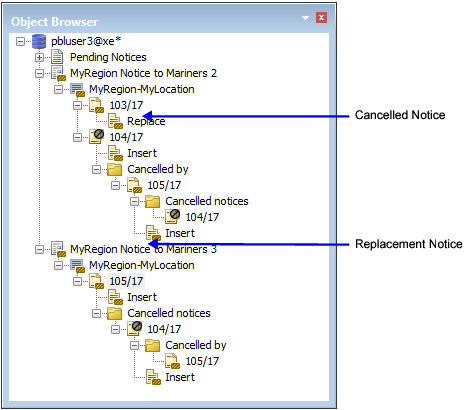
The relationship between the notice that is to be cancelled and the notice that replaces it is shown in the Object Browser.
See below. Notice 123/18 in CARIS Notice to Mariners 2 is cancelled by Notice 246/18 in CARIS Notice to Mariners 3.
Procedure: External notices
Notices that were created outside of Publications Module can also be flagged as cancelled.
1. Select a pending or publication notice that will cancel an external notice.
2. Select the Cancel Notices command.
The Cancel Notices dialog box is displayed.
3. Click the arrow buttons beside Number of external notices to reference.
4. Click OK.
The Object Browser is refreshed to display a Cancelled Notices folder just below the notices folder that was selected.
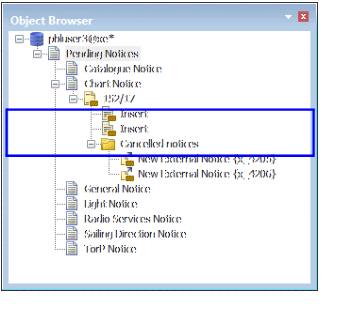
5. Select a New External Notice.
The Properties window displays attributes for the object.
6. Complete the following fields in the Properties window.
Attribute | Description |
|---|---|
Notice Num | The number of the external notice to be cancelled. |
Pub Year | The year when the notice was created |
Pub ID | The publication ID. |
The New External Notice objects are renamed according to the notice number. When the notice is published, these notices will be listed as cancelled.