 CARIS HPD Publications Module
 CARIS HPD Publications Module
Menu | Publication > Update Instructions |
Tool | |
Update instructions because of updates to features since a notice was created.
To apply this command, HPD Paper Chart Editor (PCE) or HPD Source Editor (SE) must be open and the modified chart must be displayed.
In PCE, the layer that contains the feature can be a Panel layer or a Project Review layer, but the product must belong in the same schema as the publication.
In SE, the layer that contains the feature can be from a usage layer or a Project Review layer, but the project must have a chart that is in the same schema as the publication.
Related commands:
• • • • • • • | • • • • • • • |
Interface
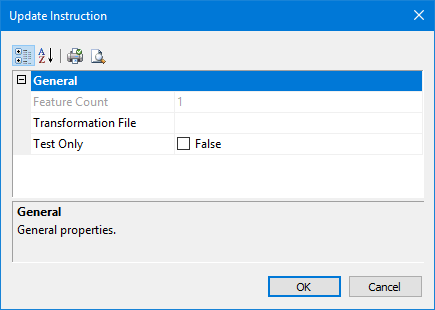
Property | Description |
|---|---|
Feature Count | Total number of selected features in the HPD editor. This is a read-only field. |
Transformation File | Path and name of the XSLT file used to format the record. 1. Click Browse. The Open dialog box is displayed. 2. Select an XSLT file. 3. Click Open. The path and name for the file are displayed. |
Test Only | True: Run a diagnostic tool to examine the in-memory XML files that are generated from the XSLT processor, and customize the XSLT rules. 1. Enable Test Only. A Save As dialog box is displayed. 2. Type the name of the file. 3. Click Save. Two XML files are created and saved to the same directory as the XSLT file: • Input file contains only the information from the HPD editor. It has • Output file contains the Publications Module XML that is created when the input file is combined with the rules from XSLT file. This is the file that is used by Publications Module. It has 4. Click OK. The records are listed in the Notices window. You can view both the False: No test is run. For more information on the in-memory XML documents and XSLT, see Publications. |
Procedure - Paper Chart Editor
1. Open Publications Module.
2. In Paper Chart Editor, select the feature or features that have been updated.
3. In Publications Module, select the instruction in the Object Browser that contains the feature.
4. Select the Update Instructions command.
The Update Instructions dialog box is displayed.
5. Define any necessary properties and click OK.
The updated feature coordinates are applied to the table.
Procedure - Source Editor
1. Open Publications Module.
2. In Source Editor, select the feature or features that have been updated.
3. In Publication Module, select the instruction in the Object Browser that contains the feature.
4. Select the Update Instructions command.
The Update Instructions dialog box is displayed.
5. Define any necessary properties, and click OK.
The updated feature coordinates are applied to the table.
