 CARIS HPD Publications Module
 CARIS HPD Publications Module
Menu | Publication > Link Instruction to Panel |
Tool |
|
Pop-up | Link to Panel (Object Browser) |
The Link Instruction to Panel command captures panel information from a paper chart and inserts it in the Chart List attribute for an instruction.
This command is applied under the following conditions:
• Instruction information was not directly taken from the panel.
• Instruction information is applicable to other panels.
Charts must belong to the same schema as the publication.
Related commands:
• • • • • • • | • • • • • • • |
Interface
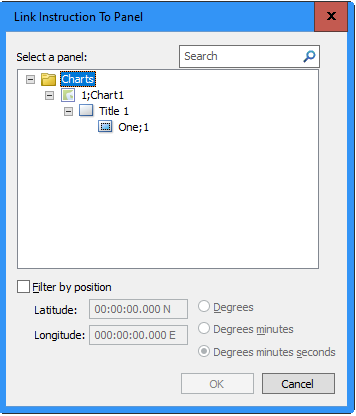
Option | Description |
|---|---|
Select a panel | Select a panel from the complete list of panels. Only populated paper charts and external paper charts are included in the list. |
Filter by position | On: Filter the panel list based on position. Only panels that overlap the coordinate position are displayed. 1. Select a coordinate format. If the instruction already has a position, the position will be automatically displayed. 2. If necessary, type coordinates in the Latitude and Longitude boxes. 3. Select a panel from the filtered list of panels. |
Procedure
1. Select an instruction in the Object Browser.
2. Select the Link Instruction to Panel command.
The Link Instruction to Panel dialog box is displayed.
3. Select a panel from the complete list or by using the position filter.
4. Click OK.
Information from the panel is copied to the instruction’s properties.
Once an instruction and Panel are linked, in the an Updates folder will be shown under the chart, containing the linked Instructions; and an Affected Paper Charts folder will be shown under the Instruction, under this will be listed all panels that are linked.
