 CARIS HPD Paper Chart Editor
 CARIS HPD Paper Chart Editor
CARIS Paper Chart Composer
Menu | File > Export > Sheet > PDF |
Export a sheet to a geospatial PDF file.
A specific area can be exported by using the Set Export Area command.
Related commands:
• • • • • | • • • • • |
Interface
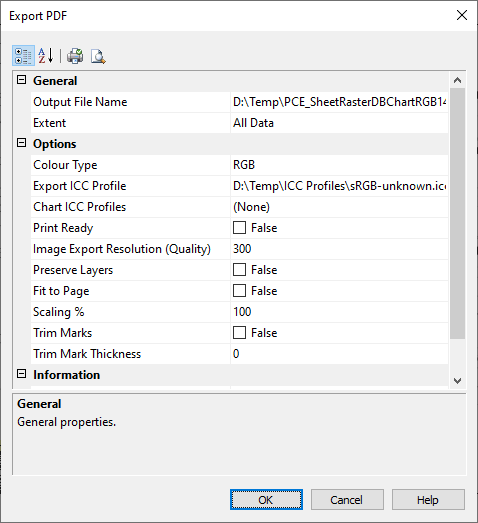
Properties | Description |
|---|---|
Output File Name | The name of the exported PDF file. 1. Click Browse to open the Save As dialog box. 2. Select a path and type a name for the file. 3. Click Save. The file path and name are listed in the dialog box. |
Extent | The area that is to be exported. Select from: • All Data to export the entire sheet. • Current View to export the area of that is currently displayed. • Export Area to set an area of the panel for export. |
Colour Type | Colour type for the chart. This option supports CMYK and RGB colour types. Select from the dropdown list. |
Export ICC Profile | Browse to an external ICC profile (.icc) to apply to the chart on export. When set, this option converts the colours to those of the ICC profile. |
Chart ICC Profiles | Select an ICC profile available in the chart to apply to the chart on export. Selecting any entry except sRGB fills the Export ICC Profile filename. Select from the dropdown list. The default is None. |
Print Ready | Set the handling of colours in the exported PDF: • True: If an Export ICC profile is specified, the colours are converted and no ICC profile is stored in the PDF export file. • False: If an Export ICC profile is specified, the colours are converted and the selected profile is stored in the PDF export file. If no Export ICC profile is specified, the profile(s) in the chart are used instead. Click the check box to change the value from False to True. |
Image Export Resolution | The DPI size for images that are exported with the sheet. Type a value in the field. |
Preserve Layers | Export a chart to a PDF file that retains the same layer structure as in the application. Note: This option exports vector layers without dynamic masking. Turn off raster layers or dynamically masked layers. Select the check box to change the value from False to True. |
Fit to Page | Fit the chart to an entire page. Click the check box to fit the sheet to the page. |
Scaling | Set the chart to a percentage of its original size. This option is available if the Fit to Page option is not selected. Type a percentage in the field. |
Render Text as Curves | Export text as vector curves instead of pixels. This option is useful if the chart contains fonts that are not on your printer or plotter. Note: This option is not available for raster charts or charts with a dynamic masking presentation. Click the check box to change the value from False to True. |
Trim Marks | Add trim marks to a sheet as guides to trimming oversized sheets. Click the check box to change the value from False to True. |
Trim Mark Thickness | Thickness of trim marks in millimetres. Type a value in the field. |
Procedure
1. From the Layers window, select the Sheet layer.
2. Select the Export Sheet to PDF command.
The Export PDF dialog box is displayed.
3. Define any necessary properties and click OK.
A progress bar appears.
To cancel the export at any time, select the Esc key and confirm your action by clicking Yes in the pop-up window.