CARIS HPD Paper Chart Editor
 CARIS HPD Paper Chart Editor
CARIS HPD Product Editor
CARIS HPD Source Editor
CARIS HPD Publications Module
Menu | File > Open > HPD Project |
Tool |
|
Open an HPD project directly.
Only projects with the following status settings can be opened:
• New
• Under Construction
• Ready for Validation
• Accepted
• Verified.
If the project status is not one of those listed (for example, Rejected or Completed) the project is not listed in the dialog box and cannot be selected.
Related commands:
• • • • • • • • | • • • • • • • • |
Interface
Each HPD editor has a slightly different dialog box. The table below describes all the variations.
Click the thumbnail to see a larger image.
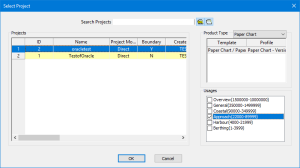
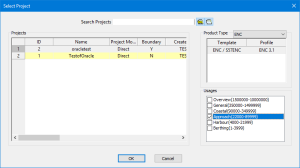
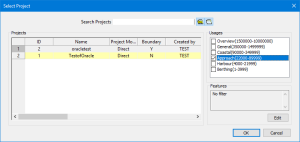
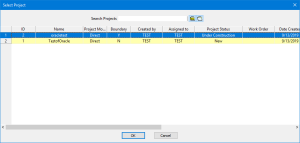
Option | Description |
|---|---|
Search Projects | Narrow the list of projects displayed in the Projects table. Type the name in search box and press <Enter>. You can use the User’s Projects ( • On: See only projects that have been assigned to you. • Off: See all projects. Completed Projects ( • On: Hide projects that have been completed. • Off: See all projects. |
Project | List of available projects. A red-shaded row indicates that a project is locked by another user. If you open the project, it will be read-only. Hover over the row to see he name of the user who has locked the project. A yellow-shaded row indicates that the project status is NEW. 1. Select a project from the list. |
Product Type | [Product Editor and Paper Chart Editor only] Defines the type of product you can create from the project. Product types are: • S-57 ENC • S-57 AML • S-57 IENC • S-57 IENC Overlay • Generic S-57 • S-101 • GML Product • Tiled Raster Product • Paper Chart The list will contain only product types that are available to the user, therefore not all product types will be listed. 1. Select a product type from the list. |
Definition | [Product Editor and Paper Chart Editor only] Each product type has profile and catalogue definitions associated with it. 1. Select a definition from the list. If there is only one definition, it will be selected automatically. For more information on profiles and catalogues, see Database Administration. |
Usages | Associate the project to a usage by clicking a check box in the Usages list. |
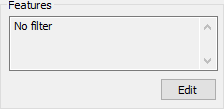
Features | [Source Editor only] Filter the project data so that you only open the features you are interested in.
1. Click Edit. The Filter dialog box is displayed. 2. Build the filter or open an existing filter as described in the Create Layer by Filter command. 3. When finished, click Save As and assign a path and file name to the filter. 4. Click OK. You are returned to the Select Project dialog box. Your filter is listed in the Features box. |
Procedure
1. Select the Open HPD Project command.
The Select Project dialog box is displayed.
2. Select a project.
Set any other necessary options.
3. Click OK.
If the project has a boundary, the project is opened.
If the project does not have a boundary, the Select Workspace dialog box is displayed.
4. Select a workspace and click OK.
The project is opened in the Display window
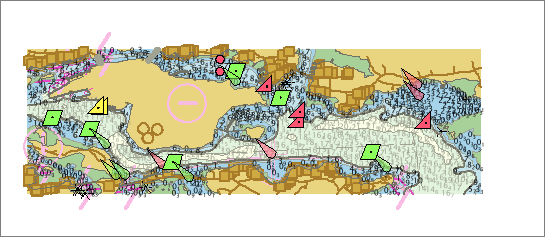
If the project boundary or the workspace extent is smaller than the extent of the data in the database, only the data within the boundary or workspace is displayed. Data outside the boundary is shown in grey.

 )
) )
)