Pop-up | Line Digitizer > Arc [centre + 2 points] |
Use with the Create Line Feature command only.
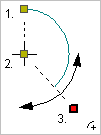
Digitize an arc by specifying the following:
• A point on the circumference of the circle that defines the arc.
• The centre of the circle that defines the arc.
• A point that defines the length and direction of the arc.
This arc is a standalone feature and cannot be added as part of another line type.
Related commands:
Procedure
1. Select the Digitize Arc Using a Centre and Two Points command.
2. Click to define a point on the circumference (1).
3. Click on the centre of the circle (2).
These two points define the radius of the circle.
4. Press and hold the left mouse button.
5. Drag the cursor to an appropriate length and direction for the arc (3).
6. Release the mouse button.
You can click directly on point 3 but pressing and dragging will give you a preview of the arc. |
The new arc is created.