Feature Editing : Commands : Digitize Rectangle Using Three Points
 

Digitize Rectangle Using Three Points


Pop-up

Line Digitizer > Rectangle [3 points]

Area Digitizer > Rectangle [3 points]

Use with the Create Line Feature or Create Area Feature command.

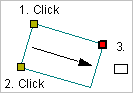
Digitize a rectangle by specifying three points.

Related commands:

• Close Line

• Digitize Point to Point Line

• Digitize Fitted Curve

• Digitize Geodesic Line

• Digitize Loxodrome

• Digitize Spline

• Digitize Squared Line

• Digitize Stream Line

• Remove Last

• Digitize Arc Using a Centre and Two Points

• Digitize Arc Using Three Points

• Digitize Arc Using Two Points and a Direction

• Digitize Geodetic Arc

• Digitize Rectangle Using Two Points

• Digitize Circle Using a Centre and a Radius

• Digitize Circle Using a Two Point Diameter

• Digitize Circle Using Three Points

• Digitize Circle Using Two Points and a Radius

• Digitize Geodetic Circle Using a Centre and a Radius

• Digitize Geodetic Circle Using Two Point Diameter

• Digitize Geodetic Circle Using Two Points and a Radius

Procedure

1. Select the Digitize Rectangle Using Three Points command.

2. Click the first two points (1 and 2).

This defines one edge of the rectangle.

3. Press and hold the left mouse button.

4. Drag the cursor to expand the rectangle.

This defines the other dimension of the rectangle. Note that the point is at the corner of the rectangle, not necessarily at the location where you click.

5. Release the mouse button.

The rectangle is added.