Tool |
|
Pop-up | Line Digitizer > Point To Point Line Area Digitizer > Point To Point Line |
Tool |
|
Pop-up | Line Digitizer > Point To Point Line Area Digitizer > Point To Point Line |
Use with the Create Line Feature or Create Area Feature command. This is the default line type.
A point to point line is composed of two or more points with straight sections joining them.
Related commands:
Procedure
1. Select the Digitize Point to Point Line command.
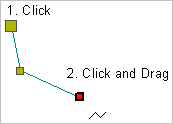
2. Click at the location of the first point.
3. Do one of the following:
• Click at the location of the second point.
• Press and hold the mouse button and drag the second point to its location then release the button.
Pressing and dragging will give you a preview of the line. |
4. Continue until all points are added.
5. End or close the line.
Pop-up | Line Digitizer > End Line Line Digitizer > Close Line |
Key | <End> <Home> |
Close line joins the first point in the line to the last point.
The new line feature is created.
