Tool |
|
Pop-up | Line Digitizer > Stream Line Area Digitizer > Stream Line |
Tool |
|
Pop-up | Line Digitizer > Stream Line Area Digitizer > Stream Line |
Use with the Create Line Feature or Create Area Feature command.
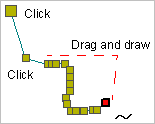
A stream line contains points at closely-spaced regular intervals. Stream lines are used to represent irregular features such as rivers and coastlines.
Related commands:
Procedure
1. Select the Digitize Stream Line command.
2. Click to insert the first point.
3. Do one of the following:
• Click to draw a straight segment from the previous point.
• Press and hold the left mouse button and draw the line as desired.
4. Release the mouse button to stop drawing.
5. End or close the line.
Pop-up | Line Digitizer > End Line Line Digitizer > Close Line |
Key | <End> or <Home> |
Close line joins the first point in the line to the last point.
The new line feature is created.
