Pop-up | Line Digitizer > Loxodrome Area Digitizer > Loxodrome |
Use with the Create Line Feature or Create Area Feature command.
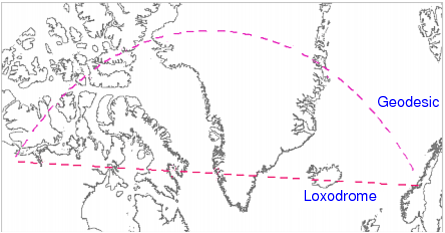
A loxodrome is a line derived from an initial bearing. It cuts all meridians at the same angle. This is more accurate for navigational use than other line types because the angles are calculated as if on a spherical surface.
Related commands:
Procedure
1. Select the Digitize Loxodrome command.
2. Click at the location of the first point.
3. Do one of the following:
• Click at the location of the second point.
• Press and hold the mouse button and drag the second point to its location then release the button.
You can click directly on point 2 but pressing and dragging will give you a preview of the line. |
4. Continue until all points are added.
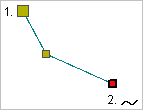
5. End or close the line.
Pop-up | Line Digitizer > End Line Line Digitizer > Close Line |
Key | <End> <Home> |
Close line joins the first point in the line to the last point.
The new line feature is created.