Pop-up | Line Digitizer > Squared Line Area Digitizer > Squared Line |
Use with the Create Line Feature or Create Area Feature command.
A squared line is a point to point line where the angles at the vertices can be forced to multiples of 45º.
Related commands:
Procedure
1. Select the Digitize Squared Line command.
2. Click once at the location of the first point (1).
3. Press and hold the mouse button and drag the cursor.
When the angle approaches 45º or 90º or other multiple, the cursor will snap.
4. Release the cursor when second line segment is the right length and the two line segments form the correct angle.
If you do not want a multiple of 45º at that vertex, you can release the cursor between snaps.
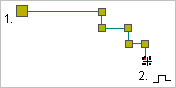
5. Repeat for each additional vertex.
6. End or close the line.
Pop-up | Line Digitizer > End Line Line Digitizer > Close Line |
Key | <End> <Home> |
Close line joins the first point in the line to the last point.
The new line feature is created.